



软件

产品

首先给大家介绍一下Dlib

Dlib是一个跨平台的C++公共库,除了线程支持,网络支持,提供测试以及大量工具等等优点,Dlib还是一个强大的机器学习的C++库,包含了许多机器学习常用的算法。同时支持大量的数值算法如矩阵、大整数、随机数运算等等。
Dlib同时还包含了大量的图形模型算法。
最重要的是Dlib的文档和例子都非常详细。
Dlib主页:
http://dlib.net/
这篇博客所述的人脸标记的算法也是来自Dlib库,Dlib实现了One Millisecond Face Alignment with an Ensemble of Regression Trees中的算法(http://www.csc.kth.se/~vahidk/papers/KazemiCVPR14.pdf,作者为Vahid Kazemi 和Josephine Sullivan)
这篇论文非常出名,在谷歌上打上One Millisecond就会自动补全,是CVPR 2014(国际计算机视觉与模式识别会议)上的一篇国际顶级水平的论文。毫秒级别就可以实现相当准确的人脸标记,包括一些半侧脸,脸很不清楚的情况,论文本身的算法十分复杂,感兴趣的同学可以下载看看。
Dlib实现了这篇最新论文的算法,所以Dlib的人脸标记算法是十分先进的,而且Dlib自带的人脸检测库也很准确,我们项目受到硬件所限,摄像头拍摄到的画面比较模糊,而在这种情况下之前尝试了几个人脸库,识别率都非常的低,而Dlib的效果简直出乎意料。
相对于C++我还是比较喜欢使用Python,同时Dlib也是支持python的,只是在配置的时候碰了不少钉子,网上大部分的Dlib资料都是针对于C++的,我好不容易才配置好了python的dlib,这里分享给大家:
因为是用python去开发计算机视觉方面的东西,python的这些科学计算库是必不可少的,这里我把常用的科学计算库的安装也涵盖在内了,已经安装过这些库的同学就可以忽略了。
我的环境是Ubuntu14.04:
大家都知道Ubuntu是自带python2.7的,而且很多Ubuntu系统软件都是基于python2.7的,有一次我系统的python版本乱了,我脑残的想把python2.7卸载了重装,然后……好像是提醒我要卸载几千个软件来着,没看好直接回车了,等我反应过来Ctrl + C 的时候系统已经没了一半了…
所以我发现想要搞崩系统,这句话比rm -rf 还给力…
sudo apt-get remove python2.7首先安装两个python第三方库的下载安装工具,ubuntu14.04好像是预装了easy_install
以下过程都是在终端中进行:
sudo apt-get install python-pipsudo apt-get install python-setuptools有时候系统环境复杂了,安装的时候会安装到别的python版本上,这就麻烦了,所以还是谨慎一点测试一下,这里安装一个我之前在博客中提到的可以模拟浏览器的第三方python库测试一下。
sudo easy_install Mechanize在终端输入python进入python shell
python进入python shell后import一下刚安装的mechanize
>>>import mechanize没有报错,就是安装成功了,如果说没有找到,那可能就是安装到别的python版本的路径了。
同时也测试一下PIL这个基础库
>>>import PIL没有报错的话,说明PIL已经被预装过了
接下来安装numpy
首先需要安装python-dev才可以编译之后的扩展库
sudo apt-get install python-dev之后就可以用easy-install 安装numpy了
sudo easy_install numpy这里有时候用easy-install 安装numpy下载的时候会卡住,那就只能用 apt-get 来安装了:
sudo apt-get install numpy不推荐这样安装的原因就是系统环境或者说python版本多了之后,直接apt-get安装numpy很有可能不知道装到哪个版本去了,然后就很麻烦了,我有好几次遇到这个问题,不知道是运气问题还是什么,所以风险还是很大的,所以还是尽量用easy-install来安装。
同样import numpy 进行测试
python >>>import numpy没有报错的话就是成功了
下面的安装过程同理,我就从简写了,大家自己每步别忘了测试一下
sudo apt-get install python-scipysudo apt-get install python-matplotlib我当时安装dlib的过程简直太艰辛,网上各种说不知道怎么配,配不好,我基本把stackoverflow上的方法试了个遍,才最终成功编译出来并且导入,不过听说18.18更新之后有了setup.py,那真是极好的,18.18我没有亲自配过也不能乱说,这里给大家分享我配置18.17的过程吧:
1.首先必须安装libboost,不然是不能使用.so库的
sudo apt-get install libboost-python-dev cmake2.到Dlib的官网上下载dlib,会下载下来一个压缩包,里面有C++版的dlib库以及例子文档,Python dlib库的代码例子等等
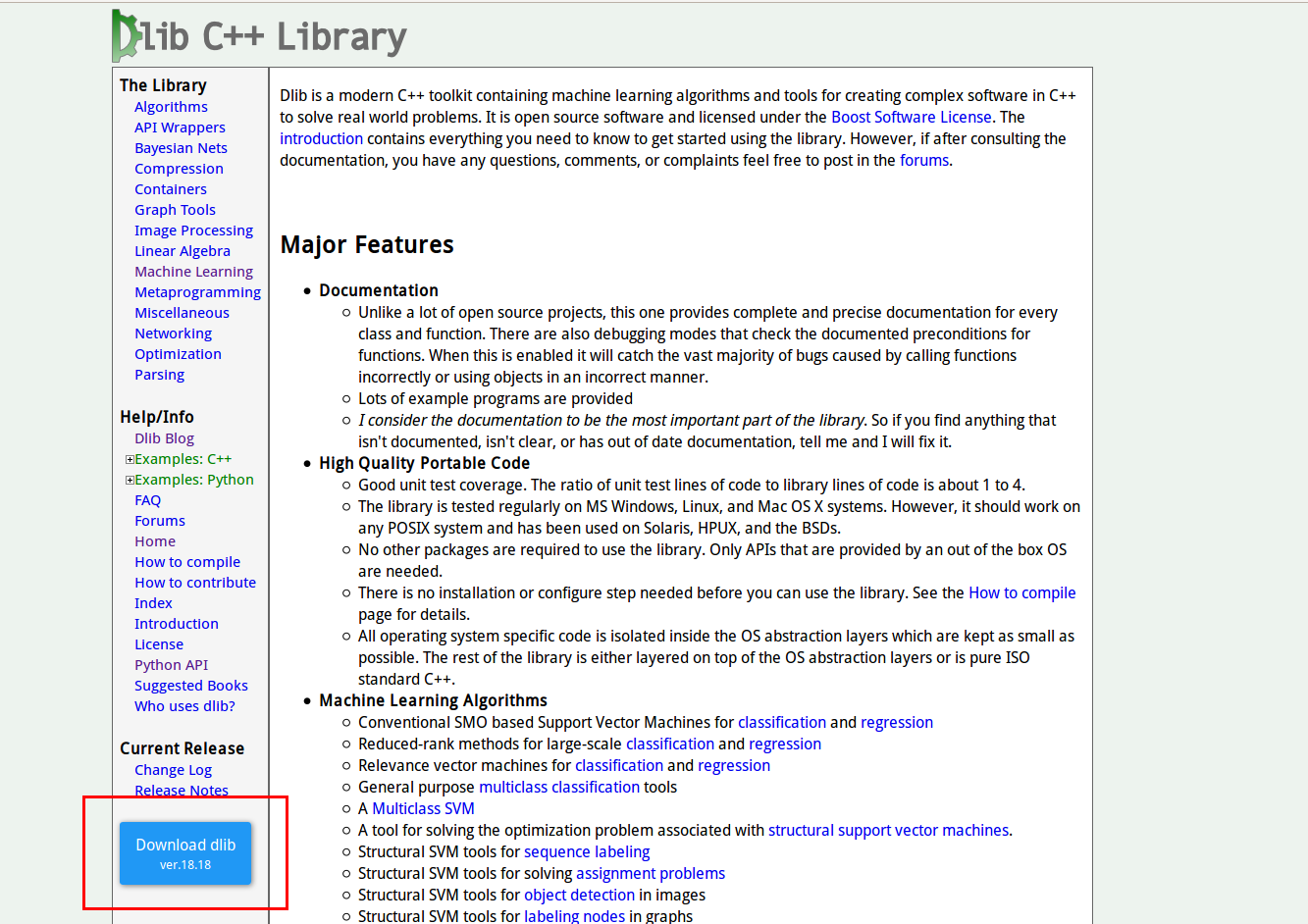
我使用的版本是dlib-18.17,大家也可以在我这里下载:
http://download.csdn.net/detail/sunmc1204953974/9289913
之后进入python_examples下使用bat文件进行编译,编译需要先安装libboost-python-dev和cmake
cd to dlib-18.17/python_examples ./compile_dlib_python_module.bat 之后会得到一个dlib.so,复制到dist-packages目录下即可使用
这里大家也可以直接用我编译好的.so库,但是也必须安装libboost才可以,不然python是不能调用so库的,下载地址:
http://download.csdn.net/detail/sunmc1204953974/9288259
将.so复制到dist-packages目录下
sudo cp dlib.so /usr/local/lib/python2.7/dist-packages/最新的dlib18.18好像就没有这个bat文件了,取而代之的是一个setup文件,那么安装起来应该就没有这么麻烦了,大家可以去直接安装18.18,也可以直接下载复制我的.so库,这两种方法应该都不麻烦~
有时候还会需要下面这两个库,建议大家一并安装一下
sudo apt-get install python-skimagesudo easy_install imtools环境配置结束之后,我们首先看一下dlib提供的示例程序
dlib-18.17/python_examples/face_detector.py 源程序:
#!/usr/bin/python# The contents of this file are in the public domain. See LICENSE_FOR_EXAMPLE_PROGRAMS.txt## This example program shows how to find frontal human faces in an image. In# particular, it shows how you can take a list of images from the command# line and display each on the screen with red boxes overlaid on each human# face.## The examples/faces folder contains some jpg images of people. You can run# this program on them and see the detections by executing the# following command:# ./face_detector.py ../examples/faces/*.jpg## This face detector is made using the now classic Histogram of Oriented# Gradients (HOG) feature combined with a linear classifier, an image# pyramid, and sliding window detection scheme. This type of object detector# is fairly general and capable of detecting many types of semi-rigid objects# in addition to human faces. Therefore, if you are interested in making# your own object detectors then read the train_object_detector.py example# program. ### COMPILING THE DLIB PYTHON INTERFACE# Dlib comes with a compiled python interface for python 2.7 on MS Windows. If# you are using another python version or operating system then you need to# compile the dlib python interface before you can use this file. To do this,# run compile_dlib_python_module.bat. This should work on any operating# system so long as you have CMake and boost-python installed.# On Ubuntu, this can be done easily by running the command:# sudo apt-get install libboost-python-dev cmake## Also note that this example requires scikit-image which can be installed# via the command:# pip install -U scikit-image# Or downloaded from http://scikit-image.org/download.html. import sys import dlib from skimage import io detector = dlib.get_frontal_face_detector() win = dlib.image_window() print("a"); for f in sys.argv[1:]: print("a"); print("Processing file: {}".format(f)) img = io.imread(f) # The 1 in the second argument indicates that we should upsample the image # 1 time. This will make everything bigger and allow us to detect more # faces. dets = detector(img, 1) print("Number of faces detected: {}".format(len(dets))) for i, d in enumerate(dets): print("Detection {}: Left: {} Top: {} Right: {} Bottom: {}".format( i, d.left(), d.top(), d.right(), d.bottom())) win.clear_overlay() win.set_image(img) win.add_overlay(dets) dlib.hit_enter_to_continue() # Finally, if you really want to you can ask the detector to tell you the score# for each detection. The score is bigger for more confident detections.# Also, the idx tells you which of the face sub-detectors matched. This can be# used to broadly identify faces in different orientations. if (len(sys.argv[1:]) > 0): img = io.imread(sys.argv[1]) dets, scores, idx = detector.run(img, 1) for i, d in enumerate(dets): print("Detection {}, score: {}, face_type:{}".format( d, scores[i], idx[i]))我把源代码精简了一下,加了一下注释: face_detector0.1.py
# -*- coding: utf-8 -*- import sys import dlib from skimage import io #使用dlib自带的frontal_face_detector作为我们的特征提取器detector = dlib.get_frontal_face_detector() #使用dlib提供的图片窗口win = dlib.image_window() #sys.argv[]是用来获取命令行参数的,sys.argv[0]表示代码本身文件路径,所以参数从1开始向后依次获取图片路径for f in sys.argv[1:]: #输出目前处理的图片地址 print("Processing file: {}".format(f)) #使用skimage的io读取图片 img = io.imread(f) #使用detector进行人脸检测 dets为返回的结果 dets = detector(img, 1) #dets的元素个数即为脸的个数 print("Number of faces detected: {}".format(len(dets))) #使用enumerate 函数遍历序列中的元素以及它们的下标 #下标i即为人脸序号 #left:人脸左边距离图片左边界的距离 ;right:人脸右边距离图片左边界的距离 #top:人脸上边距离图片上边界的距离 ;bottom:人脸下边距离图片上边界的距离 for i, d in enumerate(dets): print("dets{}".format(d)) print("Detection {}: Left: {} Top: {} Right: {} Bottom: {}" .format( i, d.left(), d.top(), d.right(), d.bottom())) #也可以获取比较全面的信息,如获取人脸与detector的匹配程度 dets, scores, idx = detector.run(img, 1) for i, d in enumerate(dets): print("Detection {}, dets{},score: {}, face_type:{}".format( i, d, scores[i], idx[i])) #绘制图片(dlib的ui库可以直接绘制dets) win.set_image(img) win.add_overlay(dets) #等待点击 dlib.hit_enter_to_continue()分别测试了一个人脸的和多个人脸的,以下是运行结果:
运行的时候把图片文件路径加到后面就好了
python face_detector0.1.py ./data/3.jpg
一张脸的:
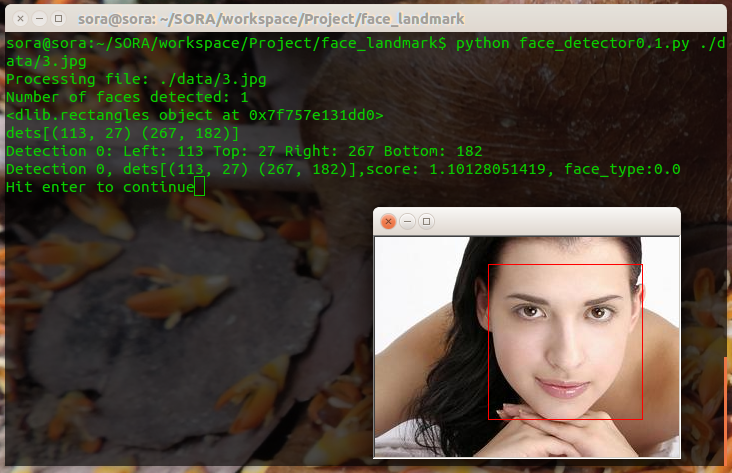
两张脸的:
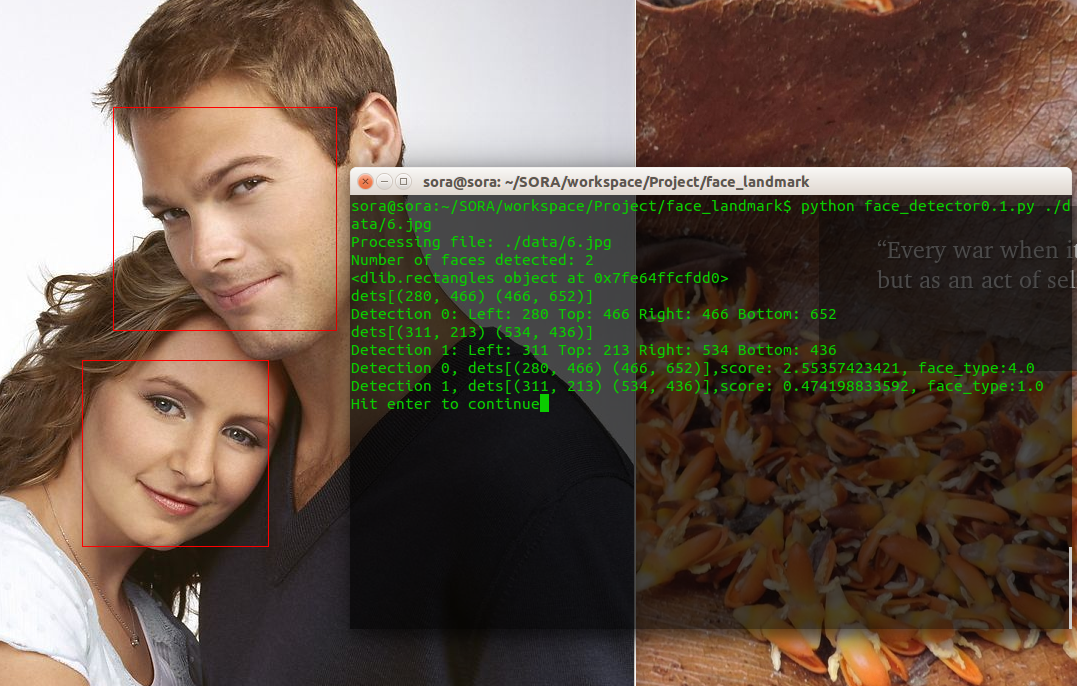
这里可以看出侧脸与detector的匹配度要比正脸小的很多
人脸检测我们使用了dlib自带的人脸检测器(detector),关键点提取需要一个特征提取器(predictor),为了构建特征提取器,预训练模型必不可少。
除了自行进行训练外,还可以使用官方提供的一个模型。该模型可从dlib sourceforge库下载:
http://sourceforge.net/projects/dclib/files/dlib/v18.10/shape_predictor_68_face_landmarks.dat.bz2
也可以从我的连接下载:
http://download.csdn.net/detail/sunmc1204953974/9289949
这个库支持68个关键点的提取,一般来说也够用了,如果需要更多的特征点就要自己去训练了。
dlib-18.17/python_examples/face_landmark_detection.py 源程序:
#!/usr/bin/python# The contents of this file are in the public domain. See LICENSE_FOR_EXAMPLE_PROGRAMS.txt## This example program shows how to find frontal human faces in an image and# estimate their pose. The pose takes the form of 68 landmarks. These are# points on the face such as the corners of the mouth, along the eyebrows, on# the eyes, and so forth.## This face detector is made using the classic Histogram of Oriented# Gradients (HOG) feature combined with a linear classifier, an image pyramid,# and sliding window detection scheme. The pose estimator was created by# using dlib's implementation of the paper:# One Millisecond Face Alignment with an Ensemble of Regression Trees by# Vahid Kazemi and Josephine Sullivan, CVPR 2014# and was trained on the iBUG 300-W face landmark dataset.## Also, note that you can train your own models using dlib's machine learning# tools. See train_shape_predictor.py to see an example.## You can get the shape_predictor_68_face_landmarks.dat file from:# http://sourceforge.net/projects/dclib/files/dlib/v18.10/shape_predictor_68_face_landmarks.dat.bz2## COMPILING THE DLIB PYTHON INTERFACE# Dlib comes with a compiled python interface for python 2.7 on MS Windows. If# you are using another python version or operating system then you need to# compile the dlib python interface before you can use this file. To do this,# run compile_dlib_python_module.bat. This should work on any operating# system so long as you have CMake and boost-python installed.# On Ubuntu, this can be done easily by running the command:# sudo apt-get install libboost-python-dev cmake## Also note that this example requires scikit-image which can be installed# via the command:# pip install -U scikit-image# Or downloaded from http://scikit-image.org/download.html. import sysimport osimport dlibimport globfrom skimage import io if len(sys.argv) != 3: print( "Give the path to the trained shape predictor model as the first " "argument and then the directory containing the facial images.\n" "For example, if you are in the python_examples folder then " "execute this program by running:\n" " ./face_landmark_detection.py shape_predictor_68_face_landmarks.dat ../examples/faces\n" "You can download a trained facial shape predictor from:\n" " http://sourceforge.net/projects/dclib/files/dlib/v18.10/shape_predictor_68_face_landmarks.dat.bz2") exit() predictor_path = sys.argv[1]faces_folder_path = sys.argv[2] detector = dlib.get_frontal_face_detector()predictor = dlib.shape_predictor(predictor_path)win = dlib.image_window() for f in glob.glob(os.path.join(faces_folder_path, "*.jpg")): print("Processing file: {}".format(f)) img = io.imread(f) win.clear_overlay() win.set_image(img) # Ask the detector to find the bounding boxes of each face. The 1 in the # second argument indicates that we should upsample the image 1 time. This # will make everything bigger and allow us to detect more faces. dets = detector(img, 1) print("Number of faces detected: {}".format(len(dets))) for k, d in enumerate(dets): print("Detection {}: Left: {} Top: {} Right: {} Bottom: {}".format( k, d.left(), d.top(), d.right(), d.bottom())) # Get the landmarks/parts for the face in box d. shape = predictor(img, d) print("Part 0: {}, Part 1: {} ...".format(shape.part(0), shape.part(1))) # Draw the face landmarks on the screen. win.add_overlay(shape) win.add_overlay(dets) dlib.hit_enter_to_continue()精简注释版: face_landmark_detection0.1.py
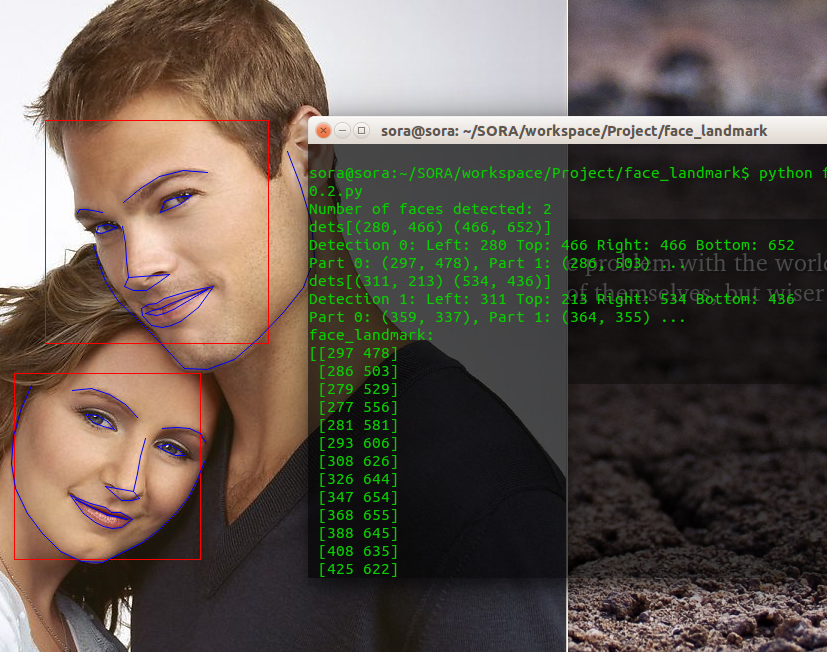
# -*- coding: utf-8 -*- import dlib import numpy from skimage import io #源程序是用sys.argv从命令行参数去获取训练模型,精简版我直接把路径写在程序中了predictor_path = "./data/shape_predictor_68_face_landmarks.dat" #源程序是用sys.argv从命令行参数去获取文件夹路径,再处理文件夹里的所有图片#这里我直接把图片路径写在程序里了,每运行一次就只提取一张图片的关键点faces_path = "./data/3.jpg" #与人脸检测相同,使用dlib自带的frontal_face_detector作为人脸检测器detector = dlib.get_frontal_face_detector() #使用官方提供的模型构建特征提取器predictor = dlib.shape_predictor(predictor_path) #使用dlib提供的图片窗口win = dlib.image_window() #使用skimage的io读取图片img = io.imread(faces_path) #绘制图片win.clear_overlay()win.set_image(img) #与人脸检测程序相同,使用detector进行人脸检测 dets为返回的结果dets = detector(img, 1) #dets的元素个数即为脸的个数print("Number of faces detected: {}".format(len(dets))) #使用enumerate 函数遍历序列中的元素以及它们的下标#下标k即为人脸序号#left:人脸左边距离图片左边界的距离 ;right:人脸右边距离图片左边界的距离 #top:人脸上边距离图片上边界的距离 ;bottom:人脸下边距离图片上边界的距离for k, d in enumerate(dets): print("dets{}".format(d)) print("Detection {}: Left: {} Top: {} Right: {} Bottom: {}".format( k, d.left(), d.top(), d.right(), d.bottom())) #使用predictor进行人脸关键点识别 shape为返回的结果 shape = predictor(img, d) #获取第一个和第二个点的坐标(相对于图片而不是框出来的人脸) print("Part 0: {}, Part 1: {} ...".format(shape.part(0), shape.part(1))) #绘制特征点 win.add_overlay(shape) #绘制人脸框win.add_overlay(dets) #也可以这样来获取(以一张脸的情况为例)#get_landmarks()函数会将一个图像转化成numpy数组,并返回一个68 x2元素矩阵,输入图像的每个特征点对应每行的一个x,y坐标。def get_landmarks(im): rects = detector(im, 1) return numpy.matrix([[p.x, p.y] for p in predictor(im, rects[0]).parts()]) #多张脸使用的一个例子def get_landmarks_m(im): dets = detector(im, 1) #脸的个数 print("Number of faces detected: {}".format(len(dets))) for i in range(len(dets)): facepoint = np.array([[p.x, p.y] for p in predictor(im, dets[i]).parts()]) for i in range(68): #标记点 im[facepoint[i][1]][facepoint[i][0]] = [232,28,8] return im #打印关键点矩阵print("face_landmark:") print(get_landmarks(img)) #等待点击dlib.hit_enter_to_continue()运行的时候从代码里写好模型地址以及图片地址,以下是运行结果:
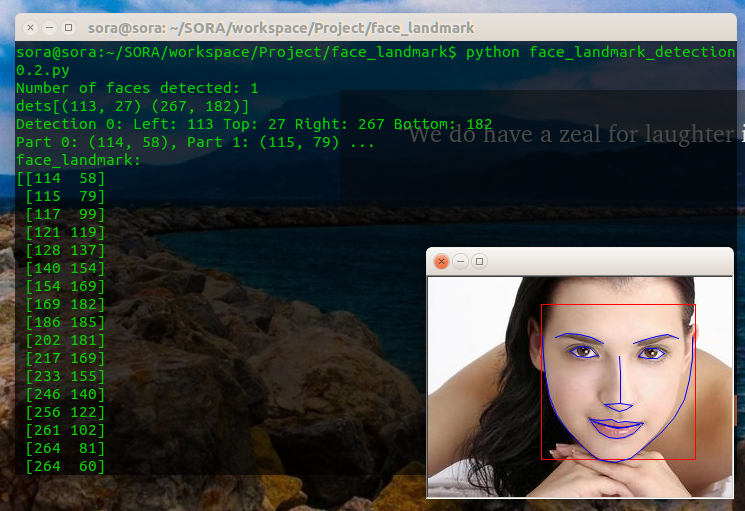
命令行输出:
sora@sora:~/SORA/workspace/Project/face_landmark$ python face_landmark_detection0.2.py Number of faces detected: 1dets[(113, 27) (267, 182)]Detection 0: Left: 113 Top: 27 Right: 267 Bottom: 182Part 0: (114, 58), Part 1: (115, 79) ...face_landmark:[[114 58] [115 79] [117 99] [121 119] [128 137] [140 154] [154 169] [169 182] [186 185] [202 181] [217 169] [233 155] [246 140] [256 122] [261 102] [264 81] [264 60] [127 60] [138 56] [151 57] [163 60] [175 66] [205 66] [217 62] [228 59] [239 57] [250 61] [191 79] [192 95] [192 111] [192 126] [176 127] [183 131] [191 134] [198 132] [204 128] [142 74] [151 69] [161 70] [169 78] [160 80] [149 79] [210 79] [217 71] [228 71] [236 76] [229 81] [219 81] [161 142] [173 143] [183 142] [190 145] [197 144] [206 145] [215 146] [205 156] [196 160] [188 161] [180 160] [171 155] [165 144] [182 149] [189 150] [197 150] [211 147] [196 150] [189 151] [181 149]]Hit enter to continue多张脸时的运行结果:
免责声明:本文系网络转载或改编,未找到原创作者,版权归原作者所有。如涉及版权,请联系删
 技术文档
技术文档
 推荐好文
推荐好文





 155-2731-8020