
许可优化
许可优化
产品
产品
解决方案
解决方案
服务支持
服务支持
关于
关于
软件库
当前位置:服务支持 >  软件文章 >  HM-3440教程:Model Build and Assembly模型构建与组装

HM-3440教程:Model Build and Assembly模型构建与组装

阅读数 4
点赞 0
article_banner

HM-3440: Model Build and Assembly(HM-3440: 模型  构建和组装)

This tutorial is about using the Part Browser for model buildingand assembly.(本教程介绍如何使用部件浏览器进行模型构建和组装。)

In this tutorial you will learn how to:

   。Import a PLMXML file

   。Load and create a Common representation and NVH representation for modalanalysis

   。Import connector parts, add connector representations, and realizeconnectors

   。Edit part attributes using the Entity Editor to reflectdesign changes

   。Activate configurations

   。Import and Export an assembly as a Solver Deck

   。Renumber entities using the ID-Manager

   。Check for errors using the Model Checker

This exercise uses the files located in the HM-3440 folder, which can be found in the hm.zip file. Copy the file(s) from thisdirectory to your working directory

Step 1. Start HyperMesh Desktop(步骤1。启动HyperMesh Desktop)

In this step you will start HyperMesh Desktop and loadthe OptiStruct user profile.

  1. Start HyperMesh Desktop.
  2. In the User Profile dialog, select OptiStruct. (2. 在User Profile对话框中,选择OptiStruct。
  3. Click OK.

Step 2. Import the PLMXML File

In this step you will import the PLMXML file.
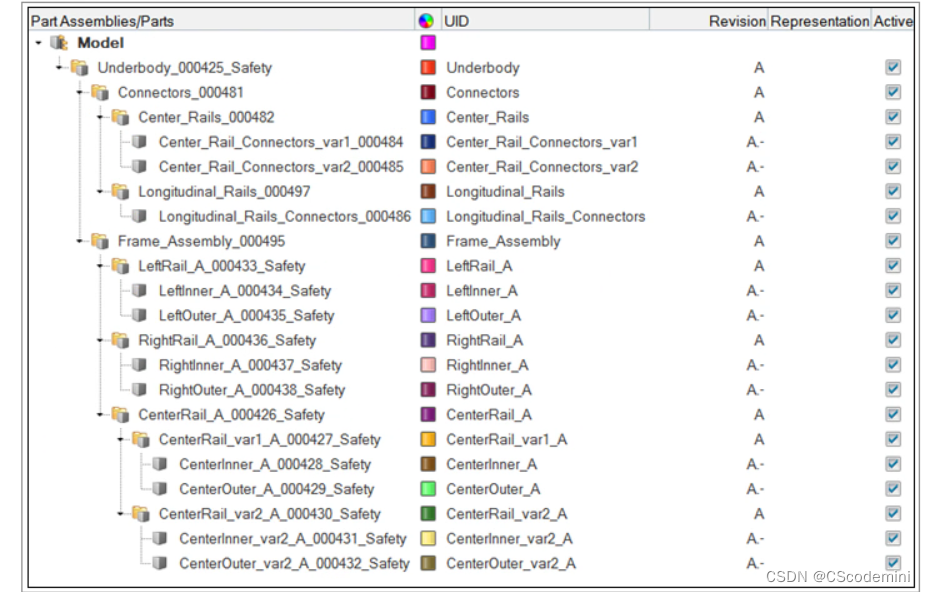
  1. Open the Import - BOM tab by clicking File > Import > BOM from the menu bar.
  2. In the File field, open the BOM_input.xml file.
  3. Click Import.

        Part assemblies and parts are imported into the session.
    在这里插入图片描述

Step 3. Load and Create a Common Representation(步骤3。加载并创建一个公共表示)

In this step you will load and create a common representation.

   (在此步骤中,您将加载并创建一个公共表示。)

Steps 3.4 - 3.6 below are optional as the Common representation can be createdwithout loading the CAD into the session. Since the Common representation forms thebasis of subsequent discipline specific mesh representations, its creation is aprerequisite for the next steps.(下面的步骤3.4 - 3.6是可选的,因为可以在不将CAD加载到会话的情况下创建Common表示。由于公共表示形式形成了后续规程特定网格表示的基础,它的创建是下一步的先决条件。)

  1. Open the Part Browser by clicking View > Browsers > HyperMesh > Part from the menu bar.
  2. In the Part Browser, right-click and on one of the columnheaders and enable the following columns from the context menu: PDM PID, PDM MID, PDM Material, PDM Thickness,and PDM MeshFlag.

These columns show the PDM metadata that is parsed upon importation of thePLMXML file. This information is also shown in the Entity Editor, PDM Data pane.

  1. Right-click on the Frame_Assembly_000495 part assemblyand select Representations > Load > From Session from the context menu.
  2. In the Change Representations dialog, Load tab, select the CAD representation.
  3. Click OK. All available CAD representations are imported into the session.
  4. Right-click on the Frame_Assembly_000495 part assemblyand select Representations > Create from the context menu.
  5. In the Change Representations dialog, Create tab, select Common (0/8).
  6. Click OK. Available CAD representations are sent to the BatchMesher for processing. Note: In the case of sheetmetal parts, the BatchMesher extracts themidsurface from the solid CAD representation. You can choose a Midsurfacemethod, include Skin, Offset, Offset + Planes, Offset + Planes + Sweeps.
  7. In the BatchMesher dialog, click Yes to load the new representations for the eightparts.
  8. Repeat Steps 3.7 through 3.10 to create NVH10 and NVH15 representations.


免责声明:本文系网络转载或改编,未找到原创作者,版权归原作者所有。如涉及版权,请联系删

相关文章
技术文档
QR Code
微信扫一扫,欢迎咨询~
customer

online

联系我们
武汉格发信息技术有限公司
湖北省武汉市经开区科技园西路6号103孵化器
电话:155-2731-8020 座机:027-59821821
邮件:tanzw@gofarlic.com
Copyright © 2023 Gofarsoft Co.,Ltd. 保留所有权利
遇到许可问题?该如何解决!?
评估许可证实际采购量? 
不清楚软件许可证使用数据? 
收到软件厂商律师函!?  
想要少购买点许可证,节省费用? 
收到软件厂商侵权通告!?  
有正版license,但许可证不够用,需要新购? 
联系方式 board-phone 155-2731-8020
close1
预留信息,一起解决您的问题
* 姓名:
* 手机:

* 公司名称:

姓名不为空

姓名不为空

姓名不为空
手机不正确

手机不正确

手机不正确
公司不为空

公司不为空

公司不为空