



软件

产品


开发这事情,本着有新的肯定用新的思想,上一章学习并分享了基于CAD2021的SDK开发环境入门。但是最近公司生产人员反馈,CAD2021他喵的挂不上cass。基于此,博主在网上找了找,发现CAD2016能支持CASS10.1.6版本,无奈下只有基于CAD2016进行开发后续工作。
上一章讲到CAD2021对应的ObjectArx SDK可以再CAD的开发者中心进行下载,但是最低的版本也就是2018的SDK。此处为珍藏的CAD2016 Object ARX SDK ,下载后解压到本地。
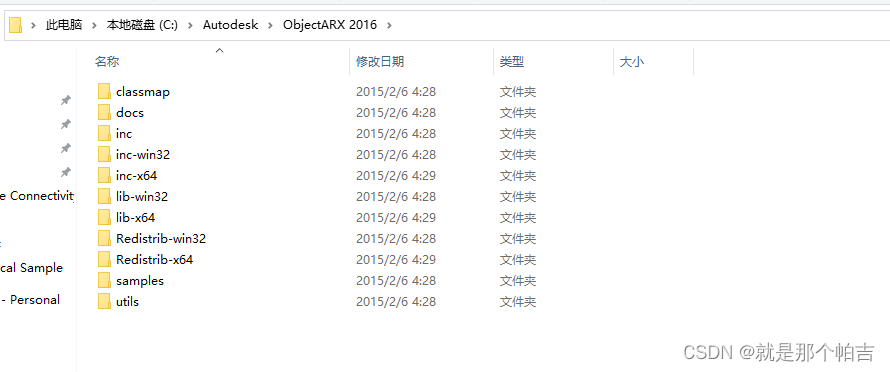
ObjectARX 2016
VS版本视对应的CAD版本进行下载安装,如下:
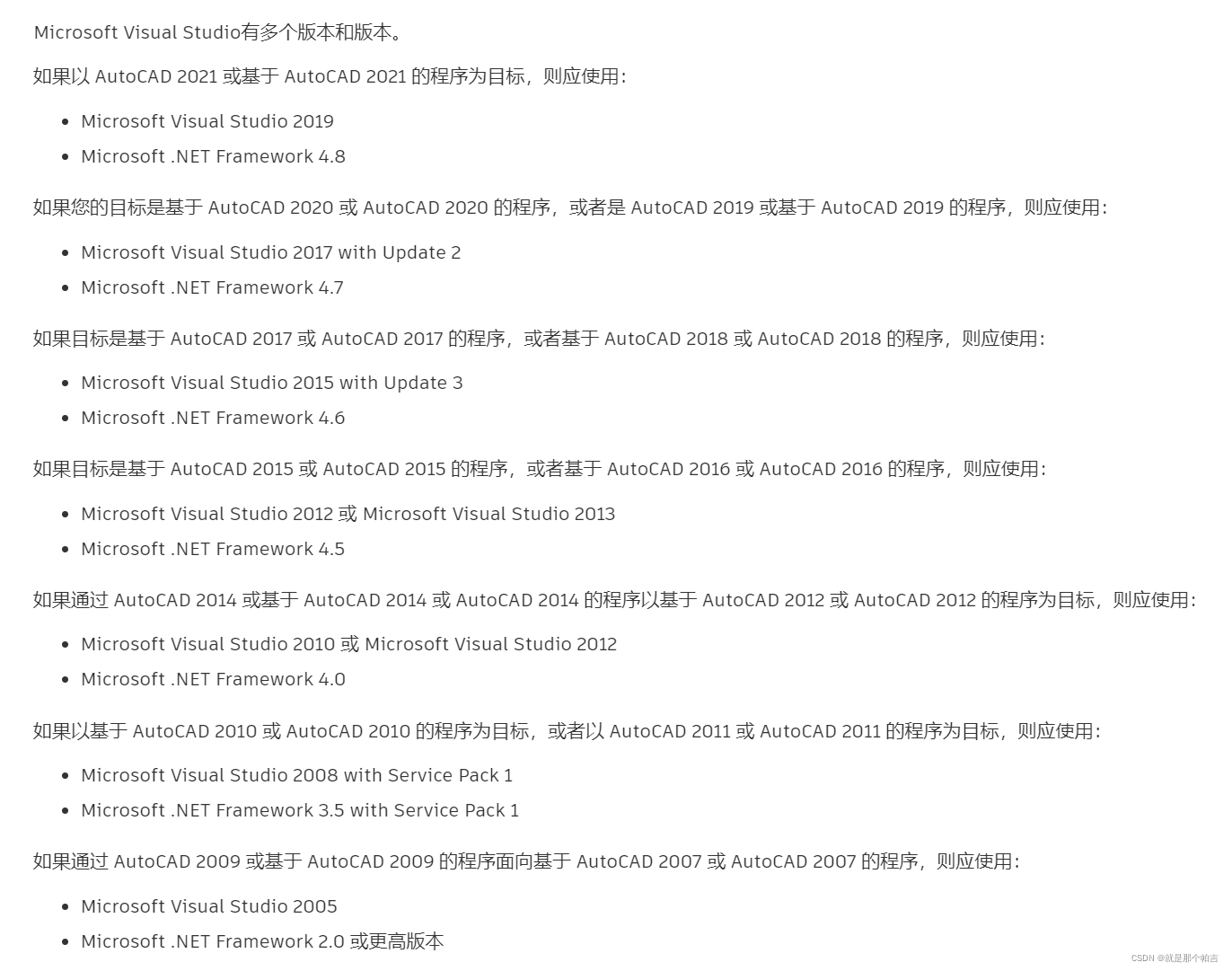
版本对照
由于博主的VS版本为2022,天生不包含 NET Framework 4.5,需要自行处理。
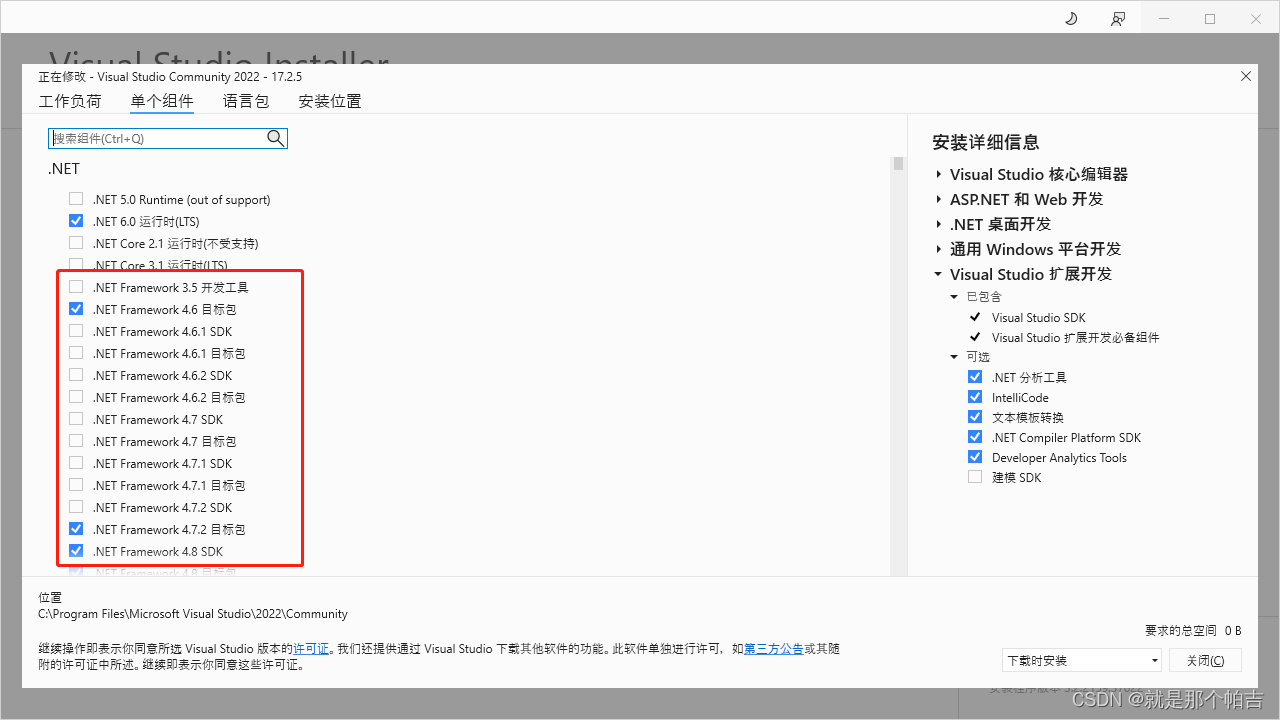
VS2022 NET支持
手下需要手动下载.NET Framework 4.5的包,下载完成进行当做压缩文件进行解压,并将其中build\.NETFramework\v4.5文件夹复制到C:\Program Files (x86)\Reference Assemblies\Microsoft\Framework\.NETFramework\v4.5,具体如图:

拷贝
现在打开VS2022就可以创建NET4.5的项目了。
本次环境为CAD2016,Vs为2022。根据CAD版本,对应的是.NET FrameWork 4.5。
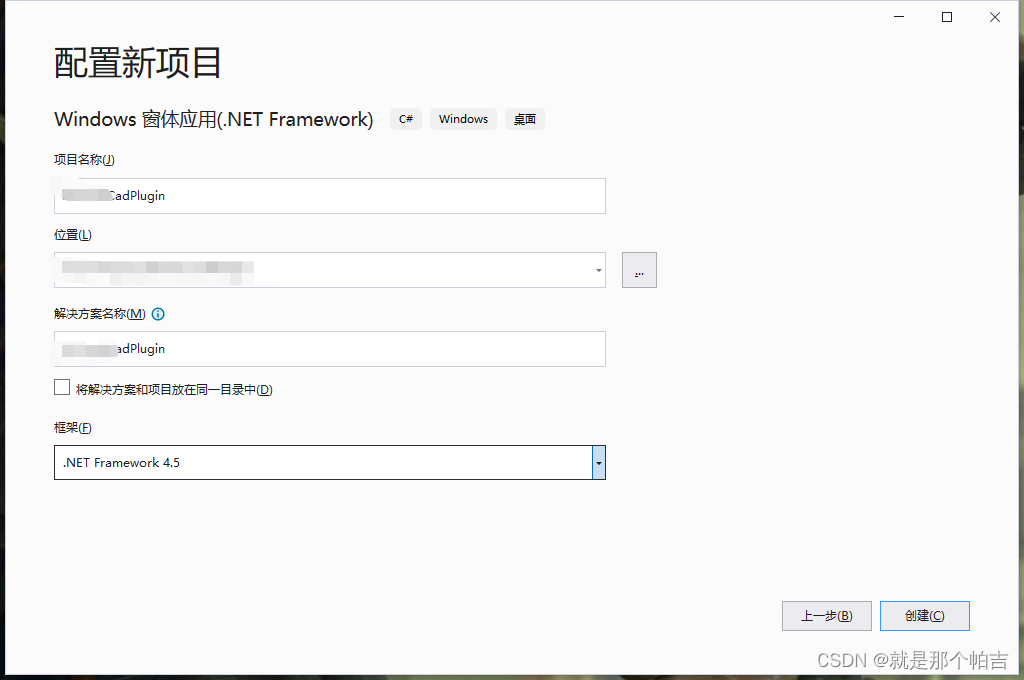
新建项目
右键“引用”,选择“添加引用”,并选择之前ObjectArx .NET的解压文件夹下"inc"文件夹内的 dll文件 ,并将复制本地更改为“False”。将“复制本地”设置为“False”将指示 Microsoft Visual Studio 不要在项目的生成输出中包含引用的 DLL。如果将引用的 DLL 复制到生成输出文件夹,则在 AutoCAD 中加载程序集文件时可能会导致意外结果
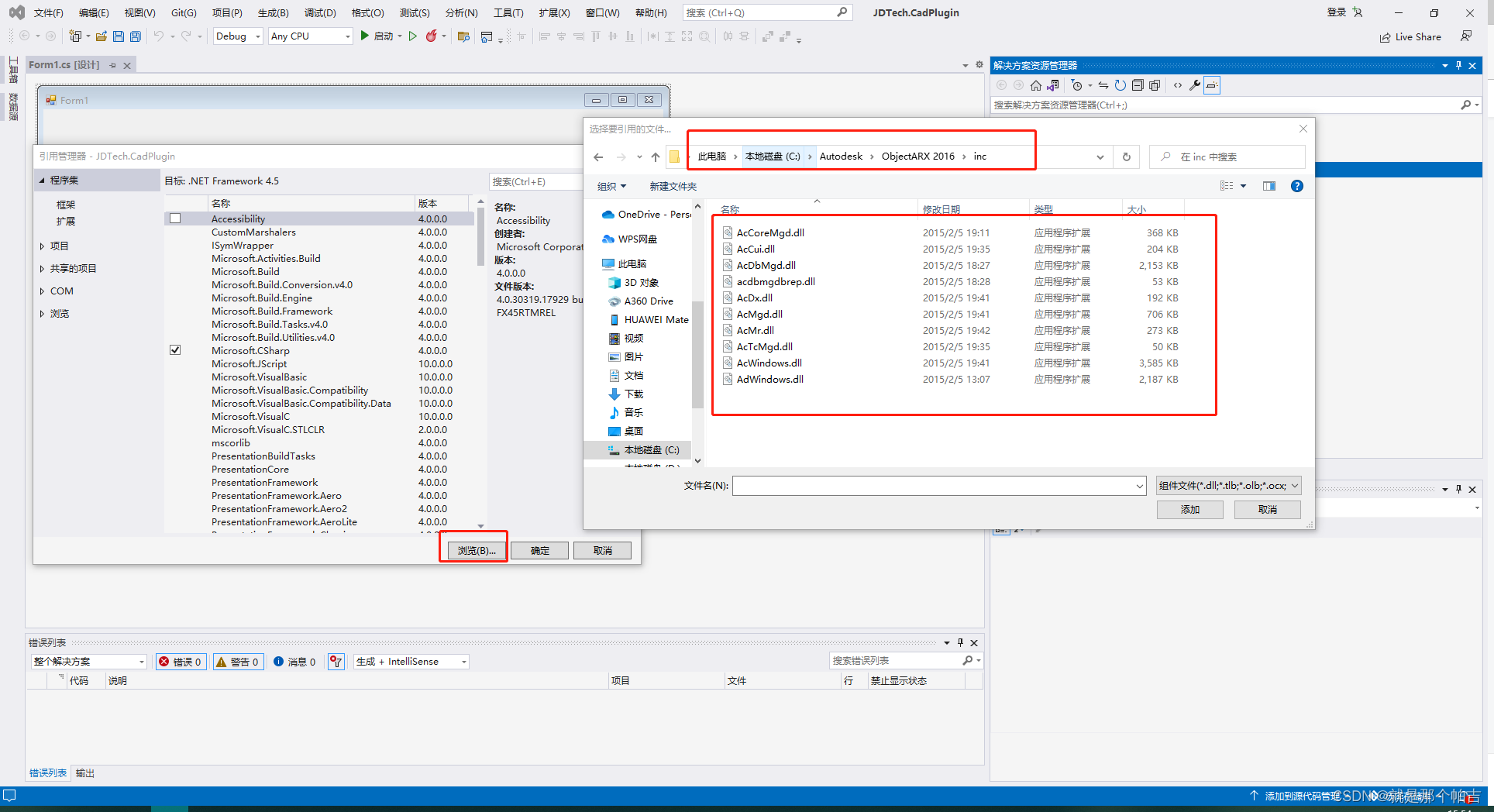
添加依赖
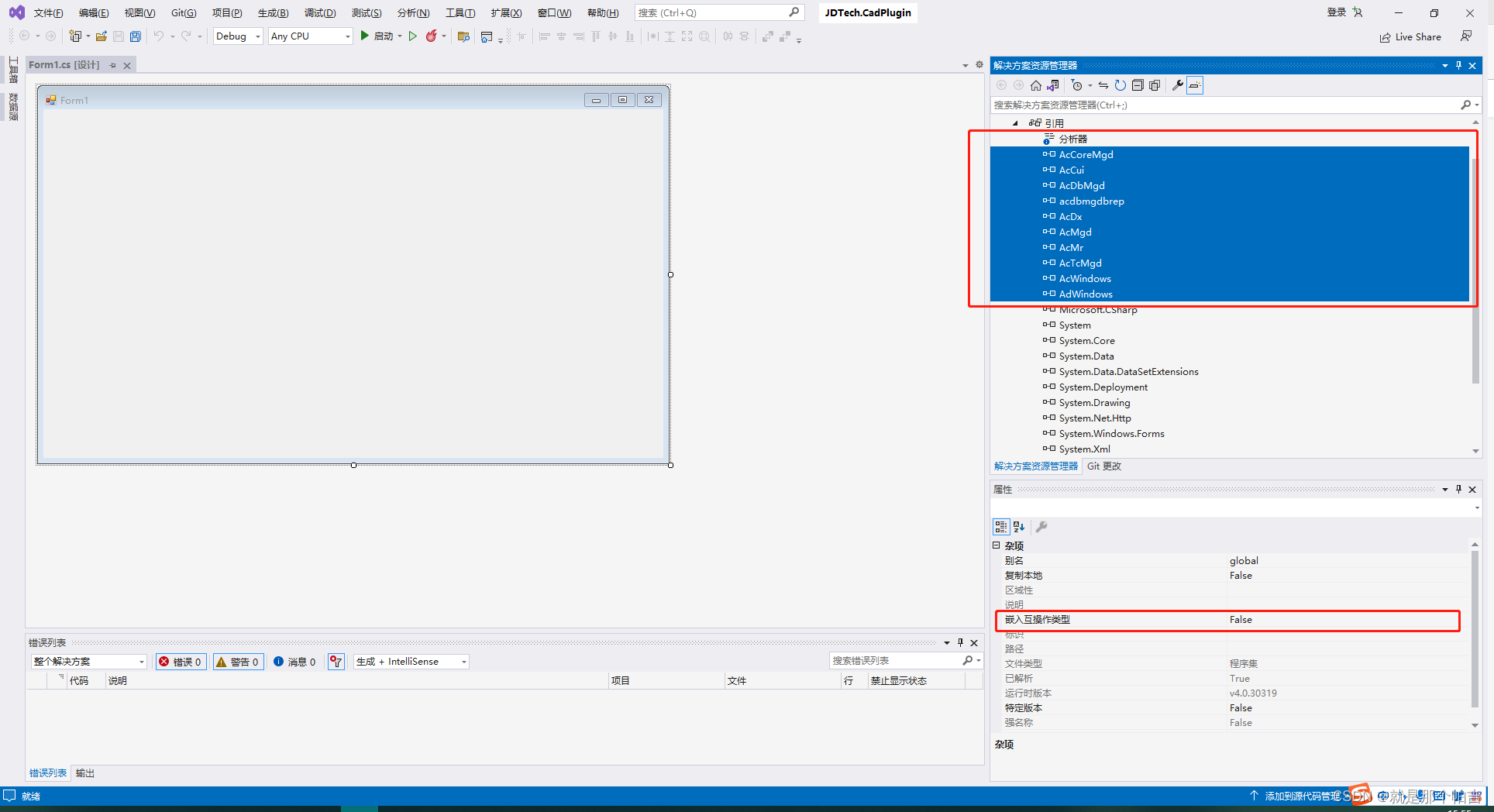
设置引用
using Autodesk.AutoCAD.ApplicationServices;using Autodesk.AutoCAD.DatabaseServices;using Autodesk.AutoCAD.Runtime; namespace CadPlugin{ public class Test { [CommandMethod("AdskGreeting")] public void AdskGreeting() { // Get the current document and database, and start a transaction Document acDoc = Application.DocumentManager.MdiActiveDocument; Database acCurDb = acDoc.Database; // Starts a new transaction with the Transaction Manager using (Transaction acTrans = acCurDb.TransactionManager.StartTransaction()) { // Open the Block table record for read BlockTable acBlkTbl; acBlkTbl = acTrans.GetObject(acCurDb.BlockTableId, OpenMode.ForRead) as BlockTable; // Open the Block table record Model space for write BlockTableRecord acBlkTblRec; acBlkTblRec = acTrans.GetObject(acBlkTbl[BlockTableRecord.ModelSpace], OpenMode.ForWrite) as BlockTableRecord; /* Creates a new MText object and assigns it a location, text value and text style */ using (MText objText = new MText()) { // Specify the insertion point of the MText object objText.Location = new Autodesk.AutoCAD.Geometry.Point3d(2, 2, 0); // Set the text string for the MText object objText.Contents = "Greetings, Welcome to AutoCAD .NET"; // Set the text style for the MText object objText.TextStyleId = acCurDb.Textstyle; // Appends the new MText object to model space acBlkTblRec.AppendEntity(objText); // Appends to new MText object to the active transaction acTrans.AddNewlyCreatedDBObject(objText, true); } // Saves the changes to the database and closes the transaction acTrans.Commit(); } } }}针对解决方案右键进行生成,在debug里面会发现一个新的“CadPlugin.dll”文件。
打开CAD2016,并输入"netload”命令,选择上面提到的CadPlugin.dll文件,确认加载后完成加载。在cad中输入“AdskGreeting”命令,可发现执行成功(命令里面的内容就是往图上插入一个TEXT)。
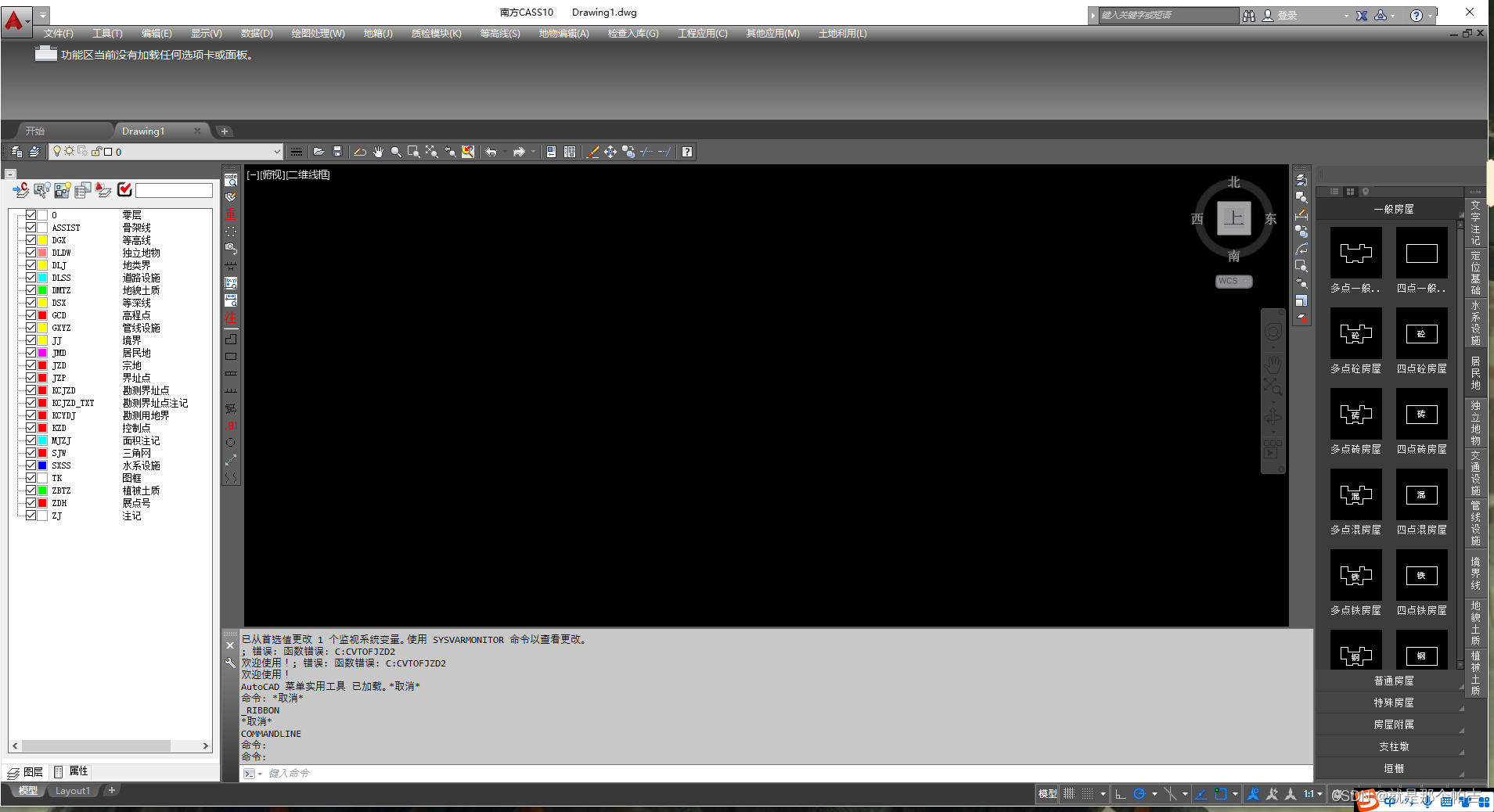
打开Cass
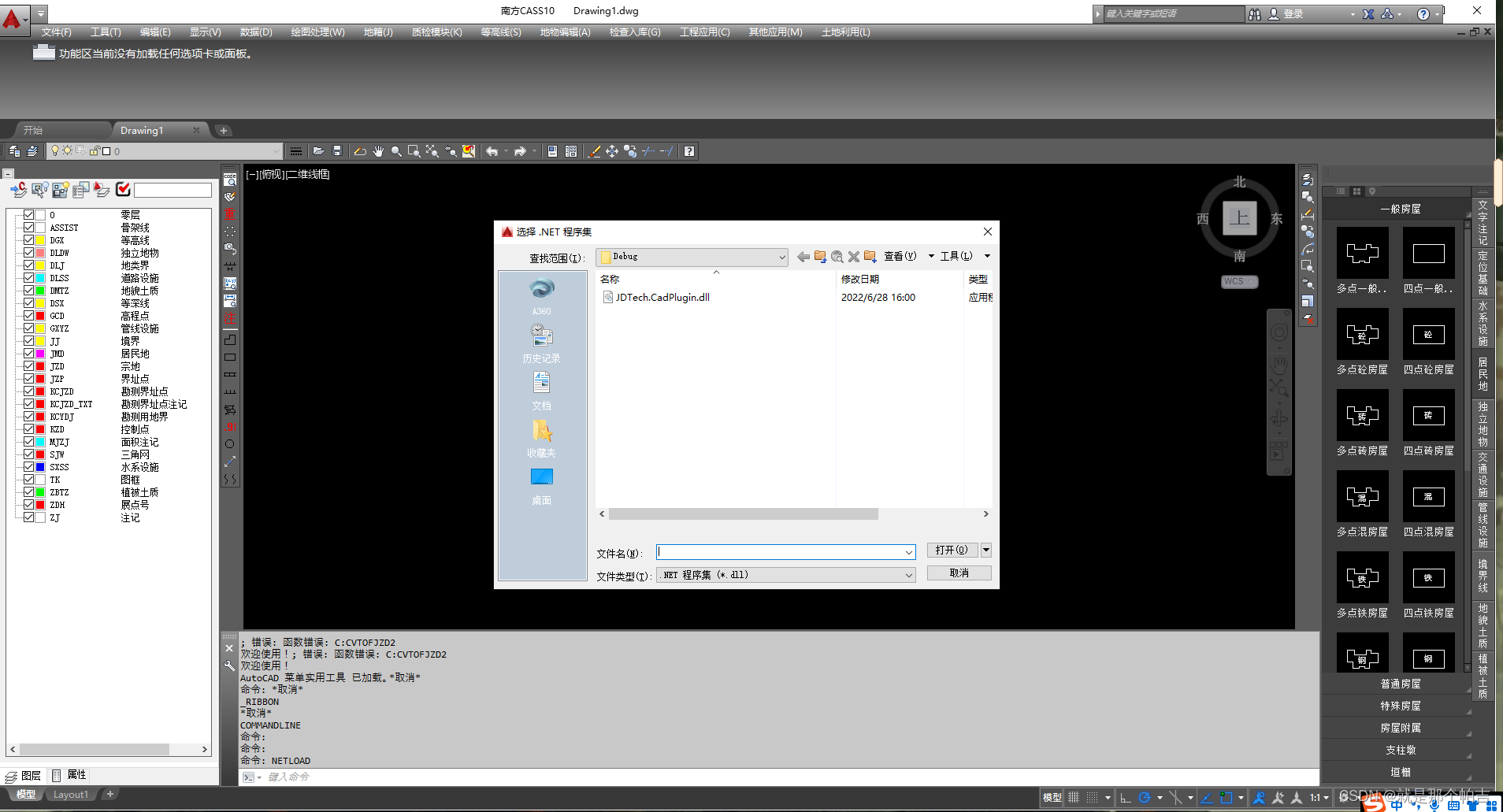
加载Demo
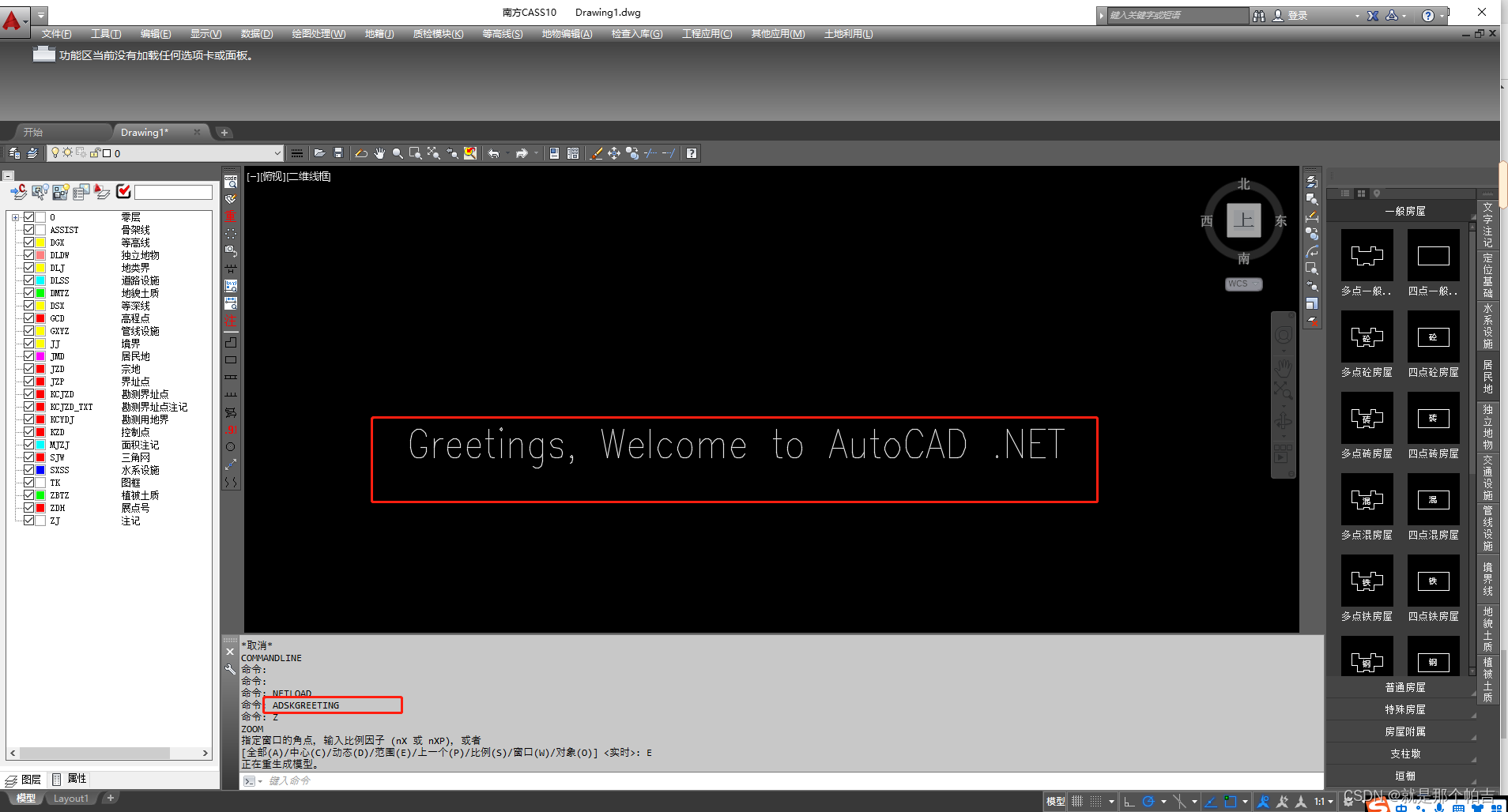
命令执行
免责声明:本文系网络转载或改编,未找到原创作者,版权归原作者所有。如涉及版权,请联系删
 技术文档
技术文档
 推荐好文
推荐好文






 155-2731-8020