



软件

产品

写在前面的话:这篇讲Cadence的入门。请各位牛人们不要浪费时间看这篇了哈!
接着上次的课程介绍:这次讲讲一个inverter的电路和版图设计。
Exercise 3: A Simple CMOS Inverter
Flow Chart of Circuit Simulation
· Circuit Schematic
· Pre-Layout Simulation
· Layout Design
· Design Rule Check - DRC
· Layout Vs Schematic Check - LVS
· Parasitic Extraction - PEX
· Post Layout Simulation - PLS
In this exercise, I will show you the whole sequence of events as stated above. I will be very patient and go through with you step by step. This exercise is very IMPORTANT as you will have to apply the same concept for your individual assignment later.
Thus, you MUST ask questions whenever you faced any difficulties. Your teaching assistant will be more than willing to help you. It is OK. You will be forgiven if you ask the same question umpteen times. Do not forget that we are here for YOU. You are our greatest pride and honour.
Now, just to let you know that we are using Cadence Version 5.1.41, USR 6. The design kit is AMIS 0.5um. You must REMEMBER these details. It is because different Cadence Version or design kit will yield totally different results.
Are you ready to fly? Let's begin NOW.
3.1 Schematic Capture
1. In the Library Manager, press File, New and Cell View. Under the Library Name of Analog_Is_Fun_Lab_Exercises, type Lab_3_inverter in the Cell Name. You should have the screen shown below. Press OK.

2. A new window will pop up like the one below. The name of it will be Analog_Is_Fun_Lab_Exercises_Lab_3_inverter_schematic.

3. Now, I am giving you a test again. I am sure you will be excited about it. Try to achieve the schematic shown below. It should be easy for you by now. If you cannot achieve it, just look for ME. After that, press Shift and x together to save it. There is an ERROR message prompted. WHY?

Look at the schematic above again. You should realize that there is no labeling done to the wires. It is as though the wires are left hanging. So, we need to add wire name to it.
Press l and a dialog box will appear like the one shown below. Type in VDD under Names. Press Hide and the VDD name will be attached to your mouse and place it on top of the wire meant for VDD voltage.

4. Now, your schematic will look like this:

5. Try it out yourself for other wire names e.g. Vin, GND and Vout. Your final schematic will look like the one shown below. Press Shift and x together to save it. There should be NO error message displayed. Are you feeling GOOD? Yes, of Course! You realise that you are more independent now. That's good.

3.2 Pre-Layout Simulation
I would not give any simulation exercises for you here as you had already gone through the necessary DC simulation work in the previous two lab exercises. I will instead focus a lot on simulation and corner analysis for your individual assignment later. That will take about a month to complete. However, why worry? I promise you before that I will guide you through all the ups and downs throughout this journey. Remember?
3.3 Layout Design
1. Now, we are ready for drawing the layout of the inverter schematic. Before that, just to inform you that there are some differences in short-cut keys between schematic and layout window. Some of the layout short-keys are listed below:
· Press z, left click anywhere on the layout window and form a rectangle to ZOOM IN.
· Press Shift and z together to ZOOM OUT.
· Right click the mouse to ROTATE the object.
· Press F2 to SAVE the layout design.
· Press letter o to create contacts or vias for any two layers.
· Press p to draw a metal.
· Press r to draw rectangle.
2. Before we start to generate the layout from the schematic, let us go back to the schematic and press q on the NMOS and PMOS. Click Yes to connect the source to bulk. What is the rationale behind it?

It is because this step will allow the generated layout to have the bulk drawn as well. It helps us to save time and effort.
3. In the schematic window, go to Tools, Design Synthesis and Layout XL. A pop-up window will appear like the one shown below, Press OK.

4. Another dialog box will appear like the one shown below. Press OK.

5. The Layout window and the LSW bar will appear together. Now, we are ready for layout. Are you ready? If no, relax and take a break before embarking on the fantastic journey ahead.

6. In the Layout window, go to Design and click on Gen from Source. The Layout Generation Options window will appear as shown below. Press OK.

7. In the Layout window, press Shift and f together and you will get:

8. In the Layout window, delete the two rectangles at the top and zoom in.

The one below is NMOS transistor. Observe that the bulk is drawn with it too. The green portion is the gate poly whereas the blue portion is the diffusion area. The yellow square is a contact whereas the red portion is metal 1.
How about the one above the NMOS transistor? What's that? Why is it covered with another greyish layer?
Give it a shot. I will explain to you shortly.
9. In the LSW bar, click on the M1-drw. In your layout window, press p twice and then click on the gate of NMOS and connect to the gate of PMOS. Double click on the left mouse to indicate end of metal 1 connection. You may face some difficulties in the connection at first. It is OK. Practise makes perfect. Do for the rest of the connections shown below. After you are done, press F2 to save the layout.

鉴于我自己也看不下去这个layout了(实在很浪费面积,而且我习惯把poly竖起来放着,不喜欢这样横着的),我Google了一个别人画的,看起来面积靠谱一些:

但是,作为一个analog designer,看到一个via真的是难受啊!好吧,鉴于inverter是个数字电路,一个via就一个吧……反正standard cell library里面的更加难看,连个transistor的形状都看不出来……
Wait. Now, we have to make sure that our layout drawing satisfies the design rule requirements. Hence, we have to perform a Design Rule Check (DRC) to ensure that it does not violate any design rule requirements. It is very IMPORTANT to perform DRC every now and then when you are drawing your layout.
DO NOT RUN DRC ONLY AFTER YOU COMPLETE THE ENTIRE LAYOUT!
This is even more important for bigger circuits. For your individual assignment, do bear this in MIND. Just to let you know that we would be using Calibre 2008 to run DRC.
———————————————————————————————————————
原创声明:本文为原创,未经许可,严禁转载。如需转载,请联系作者。
微信公众号:analogIC_gossip

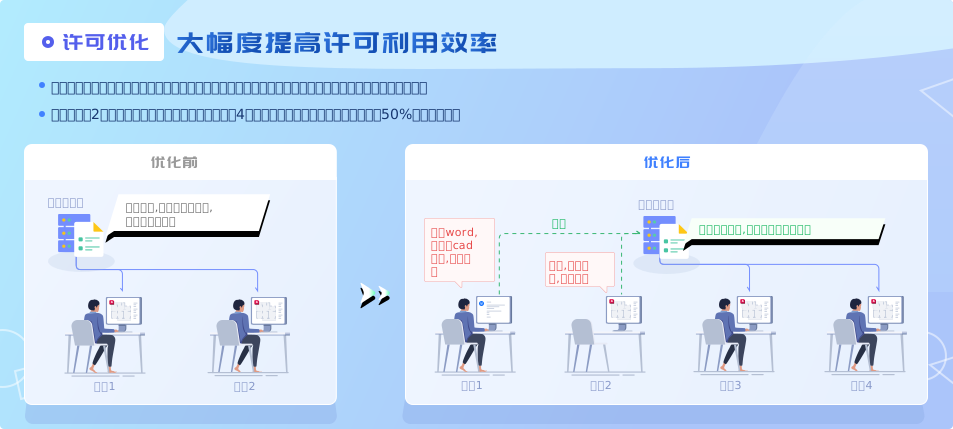
武汉格发信息技术有限公司,格发许可优化管理系统可以帮你评估贵公司软件许可的真实需求,再低成本合规性管理软件许可,帮助贵司提高软件投资回报率,为软件采购、使用提供科学决策依据。支持的软件有: CAD,CAE,PDM,PLM,Catia,Ugnx, AutoCAD, Pro/E, Solidworks 等。
 技术文档
技术文档
 推荐好文
推荐好文





 155-2731-8020