




软件

产品

关于abaqus与solidworks关联细讲的笔记
在abaqus安装包中找到SolidWorks Associative_Interface (SAI)关联文件Sw2AbqPlugin.dll。例如:[安装包路径]/1/SIMULIA_Abaqus_AI/.../SolidWorks_2.8_Associative_Interface,
其中2.8为插件的版本号。
04:48 2、SAI适配的版本
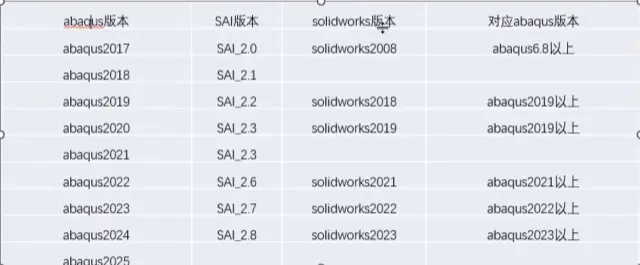
插件可以适配更高版本的Solidworks、ABAQUS。
例如SAI_2.6的帮助文档这样说:“Release 2.6 of the SOLIDWORKS Associative Interface add-in can be installed with all SOLIDWORKS releases beginning with SOLIDWORKS 2021. For more information about installing the SOLIDWORKS Associative Interface add-in in SOLIDWORKS”
评论中有朋友成功关联了SW2023与ABAQUS2021.

11:05 3、关联
根据帮助文档内容关联。
帮助文档的这一节介绍了如何安装关联插件:Installing the SOLIDWORKS Associative Interface add-in
1.Obtain the SOLIDWORKS Associative Interface zip file from the assembly media.
2.Unzip the SOLIDWORKS Associative Interface zip file and save the contents to a permanent directory; the directory must be accessible to all users of the SOLIDWORKS Associative Interface. The zip file contains the add-in .dll file.
3.Start SOLIDWORKS as a Windows administrator in one of the following ways:
4.Select File->Open from the main menu bar. The Open dialog box appears.
5.In the Files of type field, select Add-Ins (*.dll)
6.Navigate to the directory that contains the add-in file. Select the add-in .dll file, and click Open. SOLIDWORKS installs the SOLIDWORKS Associative Interface add-in
20:16 4、激活关联
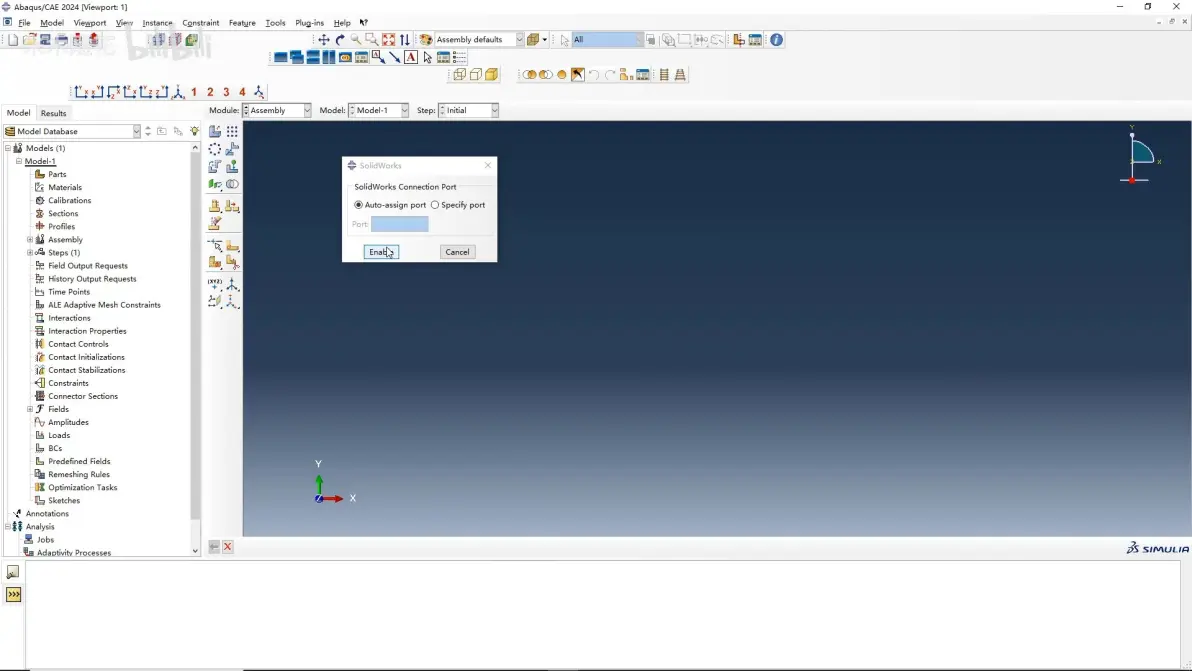
Enabling the SOLIDWORKS Associative Interface add-in
CAD Interfaces -> SolidWorks
默认端口:49180
需要注意的几个问题
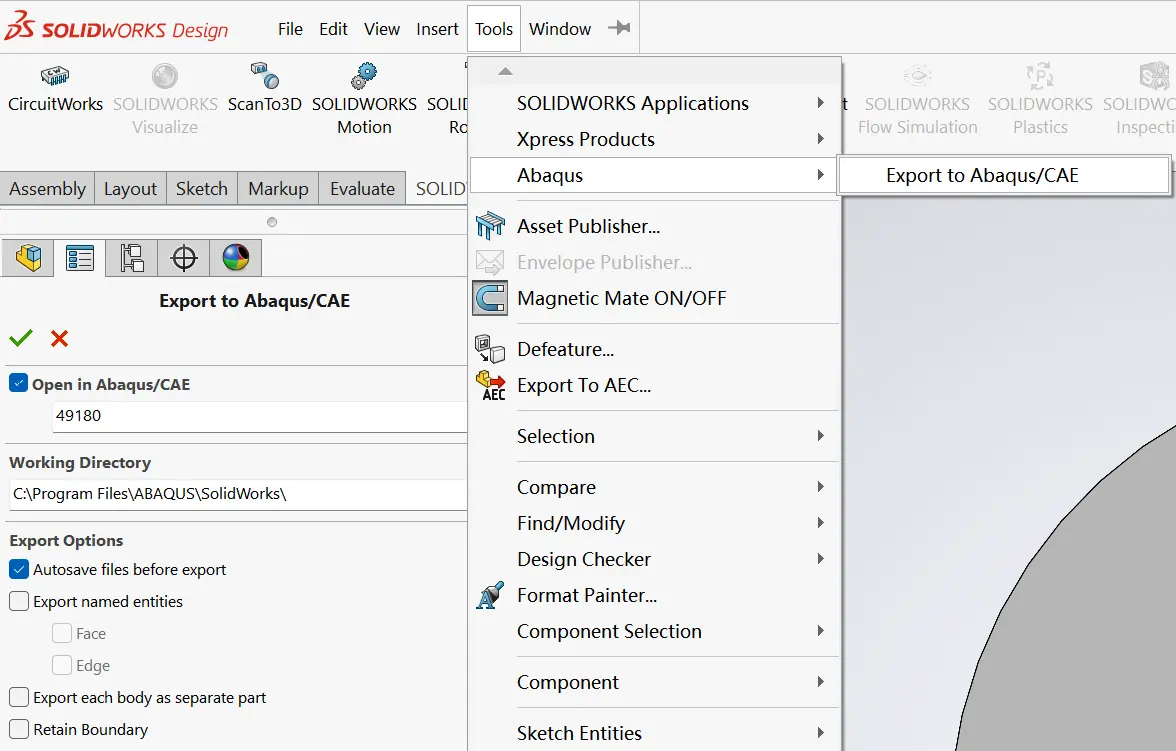
1.修改插件的工作路径。
关于工作路径帮助文档的说明是:“ In the Working Directory field, specify a path and file name to which the assembly file will be saved.”
我这里是将零件、装配体保存到ABAQUS工作路径,经测试可以关联。
2.sat文件的命名包含中文
插件运行会生成.sat文件,程序生成的.sat文件可能会包含中文,导致ABAQUS无法导入Instance。
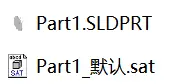
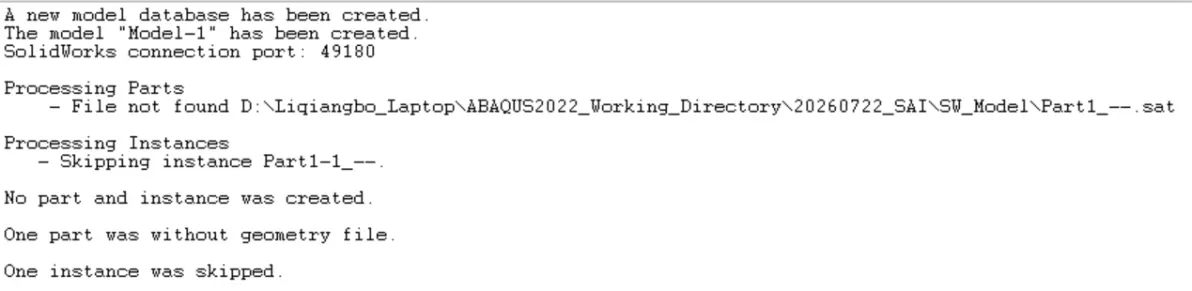
我的解决方法是设置SW的语言为英文。
如下图所示,勾选 Use English language menus 以及 Use English language feature and file names。
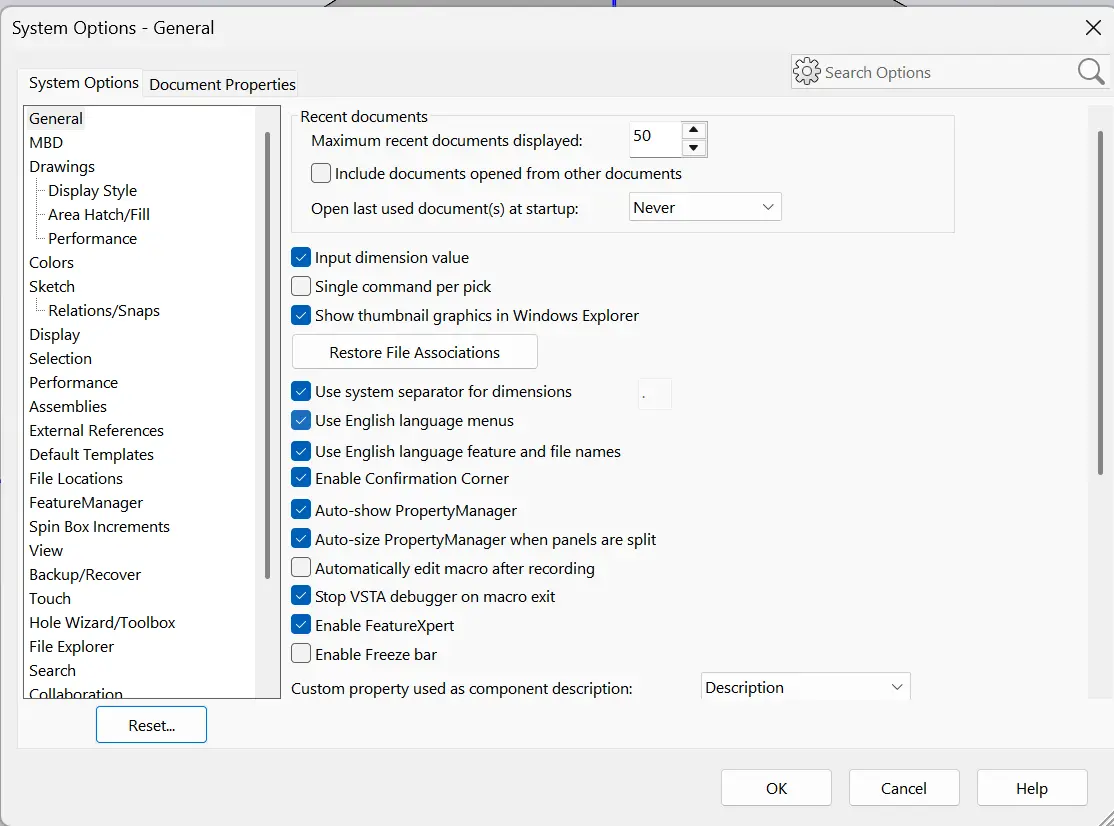
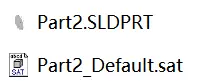
这样插件生成的.sat文件就是全英文的了。
免责声明:本文系网络转载或改编,未找到原创作者,版权归原作者所有。如涉及版权,请联系删
 技术文档
技术文档
 推荐好文
推荐好文






 155-2731-8020