



软件

产品


之前看到有国外的大神开发了一些非常好玩的 Visual Studio 扩展插件,觉得非常有意思,自己也参考了别人的代码做了一个插件。
首先需要安装 Visual Studio SDK ,安装不需要其它的工具就可以,直接使用 Visual Studio 安装包。
安装完成后打开 Visual Studio 2010,创建一个名为 VSEditorBackgroud 的 VSIX Project:文件(File)-> 新建(New)-> 项目(Project)->Visual C#->Extensibility-> VSIX Project,名称为 VSEditorBackgroud。
添加 Config 类:
using System;using System.Collections.Generic;using System.Linq;using System.Text;using System.Xml.Serialization;using System.IO; namespace VSEditorBackgroud{ [Serializable] public class Config { public ImageConfig BackgroundImage; private static Config _Config = null; [XmlAttribute] public double LayerOpacity; private static object staticSyncRoot = new object(); public Config() { this.LayerOpacity = 0.5; this.BackgroundImage = new ImageConfig(); } public static Config CreatePure() { Config config = new Config(); return config; } public static Config CurrentConfig { get { lock (staticSyncRoot) { XmlSerializer serializer = new XmlSerializer(typeof(Config), new XmlRootAttribute("ImageConfig")); bool IsCreate = false; if (_Config == null) { if (File.Exists(ConfigConsts.ConfigPath)) { try { using (StreamReader reader = new StreamReader(ConfigConsts.ConfigPath)) { _Config = (Config)serializer.Deserialize(reader); } IsCreate = true; } catch { } } if (!IsCreate) { _Config = CreatePure(); try { using (StreamWriter writer = new StreamWriter(ConfigConsts.ConfigPath, false, ConfigConsts.NoBomUTF8)) { serializer.Serialize(writer, _Config, ConfigConsts.VoidNamespaceMapping); } } catch { } } } } return _Config; } } [Serializable] public class ImageConfig { [XmlAttribute] public double Opacity = 1.0; public string Uri = "\t"; } }}添加 ConfigConsts 类:
using System;using System.Collections.Generic;using System.Linq;using System.Text;using System.IO;using System.Threading;using System.Xml.Serialization; namespace VSEditorBackgroud{ internal static class ConfigConsts { public static readonly string ConfigPath = Path.Combine(Environment.GetFolderPath(Environment.SpecialFolder.Personal) + "\\Visual Studio 2010\\Settings", "VSEditorBackgroud.config"); private static Encoding nobomutf8; public static Encoding NoBomUTF8 { get { if (nobomutf8 == null) { Interlocked.CompareExchange<Encoding>(ref nobomutf8, new UTF8Encoding(false), null); } return nobomutf8; } } public static XmlSerializerNamespaces VoidNamespaceMapping { get { XmlSerializerNamespaces namespaces = new XmlSerializerNamespaces(); namespaces.Add("", ""); return namespaces; } } } }编辑器背景类 EditorBackgroud:
using System.Windows.Controls;using System.Windows.Media;using Microsoft.VisualStudio.Text.Editor;using System.Windows.Media.Imaging;using System; namespace VSEditorBackgroud{ /// <summary> /// Adornment class that draws a square box in the top right hand corner of the viewport /// </summary> public class EditorBackgroud { private Image _image; private IWpfTextView _view; private IAdornmentLayer _adornmentLayer; /// <summary> /// Creates a square image and attaches an event handler to the layout changed event that /// adds the the square in the upper right-hand corner of the TextView via the adornment layer /// </summary> /// <param name="view">The <see cref="IWpfTextView"/> upon which the adornment will be drawn</param> public EditorBackgroud(IWpfTextView view) { _view = view; Config _Config = Config.CurrentConfig; //Grab a reference to the adornment layer that this adornment should be added to _adornmentLayer = view.GetAdornmentLayer("VSEditorBackgroud"); _adornmentLayer.Opacity = _Config.LayerOpacity; ApplyImageConfig(_Config.BackgroundImage); _view.ViewportHeightChanged += delegate { this.onSizeChange(); }; _view.ViewportWidthChanged += delegate { this.onSizeChange(); }; } private void ApplyImageConfig(Config.ImageConfig config) { if (config != null) { try { Image image = new Image(); string uri = config.Uri; BitmapImage bgImage = new BitmapImage(); bgImage.BeginInit(); bgImage.CreateOptions = BitmapCreateOptions.IgnoreImageCache; bgImage.CacheOption = BitmapCacheOption.OnLoad; bgImage.UriSource = new Uri(uri); bgImage.EndInit(); image.Stretch = Stretch.Fill; image.Opacity = config.Opacity; image.Source = bgImage; this._image = image; } catch { } } } public void onSizeChange() { //clear the adornment layer of previous adornments _adornmentLayer.RemoveAllAdornments(); if (this._image != null && !this._image.Width.Equals(this._view.ViewportWidth)) this._image.Width = this._view.ViewportWidth; if (this._image != null && !this._image.Height.Equals(this._view.ViewportHeight)) this._image.Height = this._view.ViewportHeight; //Place the image in the top right hand corner of the Viewport Canvas.SetLeft(_image, _view.ViewportLeft); Canvas.SetTop(_image, _view.ViewportTop); //add the image to the adornment layer and make it relative to the viewport _adornmentLayer.AddAdornment(AdornmentPositioningBehavior.ViewportRelative, null, null, _image, null); } }}EditorFactory 类:
using System.ComponentModel.Composition;using Microsoft.VisualStudio.Text.Editor;using Microsoft.VisualStudio.Utilities; namespace VSEditorBackgroud{ #region Adornment Factory /// <summary> /// Establishes an <see cref="IAdornmentLayer"/> to place the adornment on and exports the <see cref="IWpfTextViewCreationListener"/> /// that instantiates the adornment on the event of a <see cref="IWpfTextView"/>'s creation /// </summary> [Export(typeof(IWpfTextViewCreationListener))] [ContentType("text")] [TextViewRole(PredefinedTextViewRoles.Document)] internal sealed class PurpleBoxAdornmentFactory : IWpfTextViewCreationListener { /// <summary> /// Defines the adornment layer for the scarlet adornment. This layer is ordered /// after the selection layer in the Z-order /// </summary> [Export(typeof(AdornmentLayerDefinition))] [Name("VSEditorBackgroud")] [Order(After = PredefinedAdornmentLayers.Outlining)] [TextViewRole(PredefinedTextViewRoles.Document)] public AdornmentLayerDefinition editorAdornmentLayer = null; /// <summary> /// Instantiates a Wen manager when a textView is created. /// </summary> /// <param name="textView">The <see cref="IWpfTextView"/> upon which the adornment should be placed</param> public void TextViewCreated(IWpfTextView textView) { new EditorBackgroud(textView); } } #endregion //Adornment Factory}修改 source.extension.vsixmanifest 文件的信息:
<?xml version="1.0" encoding="utf-8"?><Vsix xmlns:xsi="http://www.w3.org/2001/XMLSchema-instance" xmlns:xsd="http://www.w3.org/2001/XMLSchema" Version="1.0.0" xmlns="http://schemas.microsoft.com/developer/vsx-schema/2010"> <Identifier Id="3f2ce087-8d13-492c-a207-e1fdbfd1cf58"> <Name>VSEditorBackgroud</Name> <Author>Charles Zhang</Author> <Version>1.0.0.5</Version> <Description xml:space="preserve">The Visual Studio Editor Backgroud plugin. </Description> <Locale>4</Locale> <License>license.rtf</License> <Icon>icon.ico</Icon> <PreviewImage>PreviewImage.jpg</PreviewImage> <SupportedProducts> <VisualStudio Version="10.0"> <Edition>Ultimate</Edition> <Edition>Premium</Edition> <Edition>Pro</Edition> <Edition>Express_All</Edition> </VisualStudio> <VisualStudio Version="11.0"> <Edition>Ultimate</Edition> <Edition>Premium</Edition> <Edition>Pro</Edition> <Edition>Express_All</Edition> </VisualStudio> </SupportedProducts> <SupportedFrameworkRuntimeEdition MinVersion="4.0" MaxVersion="4.5" /> </Identifier> <References /> <Content> <MefComponent>|%CurrentProject%|</MefComponent> </Content></Vsix>在项目中添加一个 PreviewImage.jpg 用做插件的预览图,添加 icon.ico 用做扩展的图标。
编译项目,安装生成的 Vsix 文件。
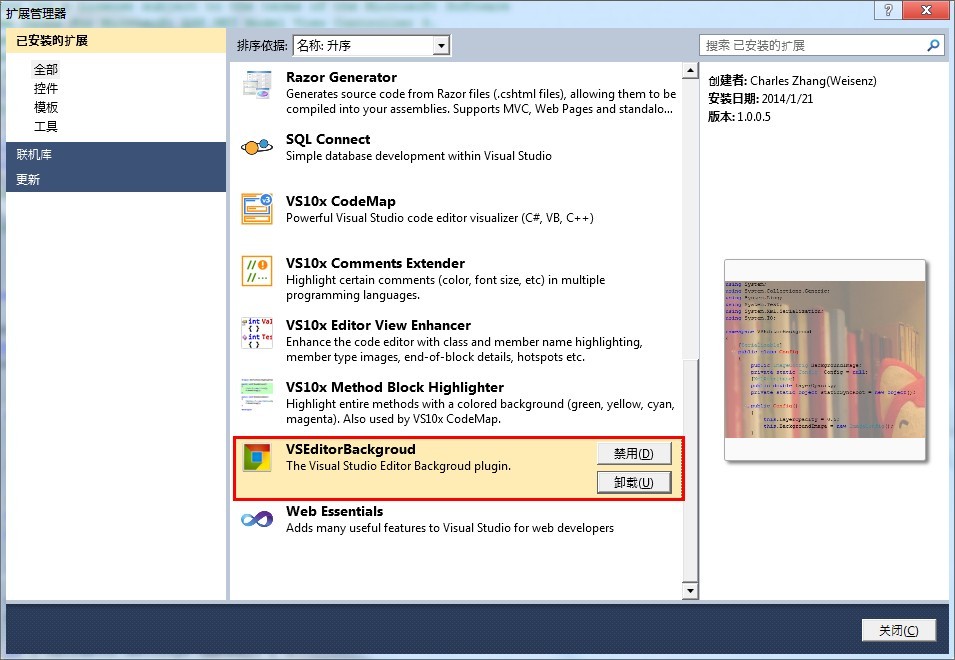
安装好以后在扩展管理器中的效果如下:
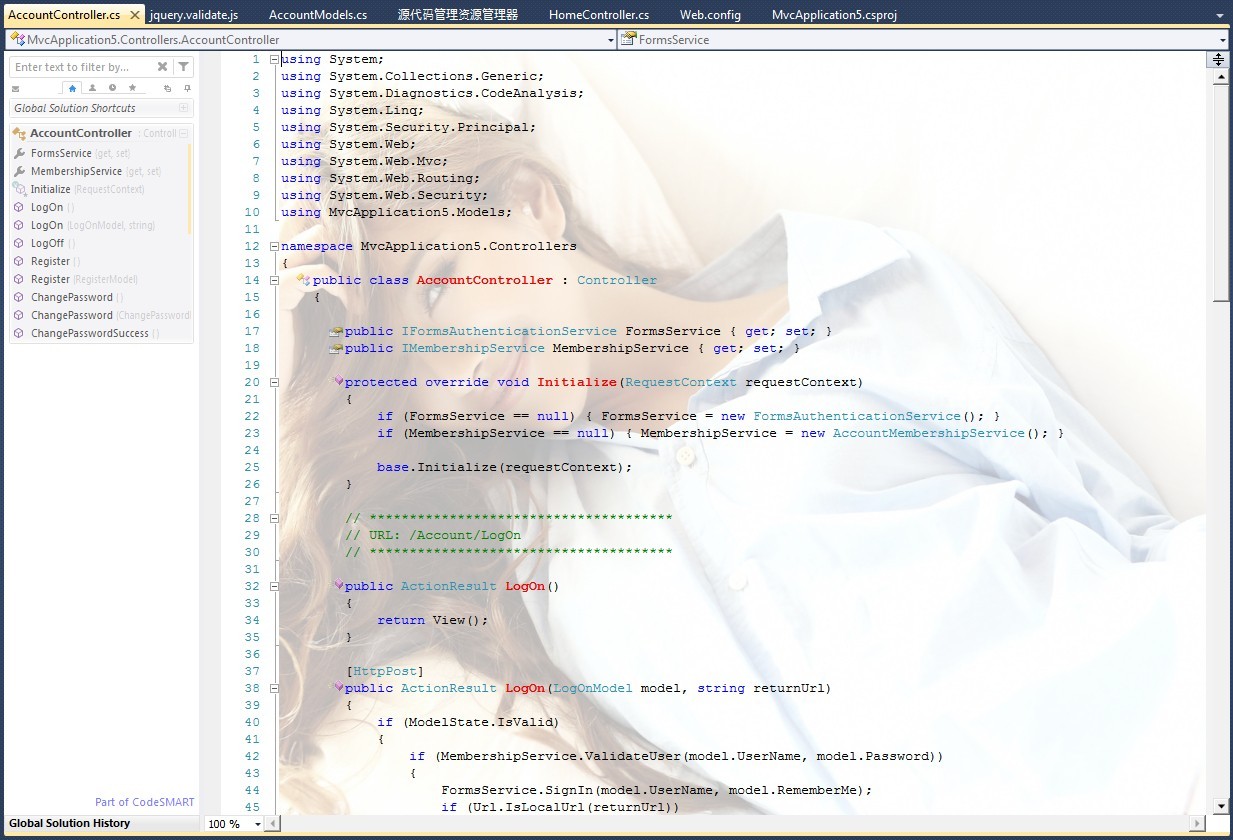
编辑器的效果如下:
以上就是 Visual Studio 2010 开发扩展插件的过程了。
转载于:https://www.cnblogs.com/weisenz/archive/2012/04/06/2434620.html
免责声明:本文系网络转载或改编,未找到原创作者,版权归原作者所有。如涉及版权,请联系删
 技术文档
技术文档
 推荐好文
推荐好文






 155-2731-8020