Autodesk License Server: Configuration and Management for AutoCAD
The Autodesk License Server is a critical component for managing network licenses for AutoCAD and other Autodesk software, enabling multiple users to share a pool of licenses efficiently. Below is a structured guide covering setup, configuration, troubleshooting, and key considerations.
1. Types of LicensesAutodesk offers two primary license models for AutoCAD:
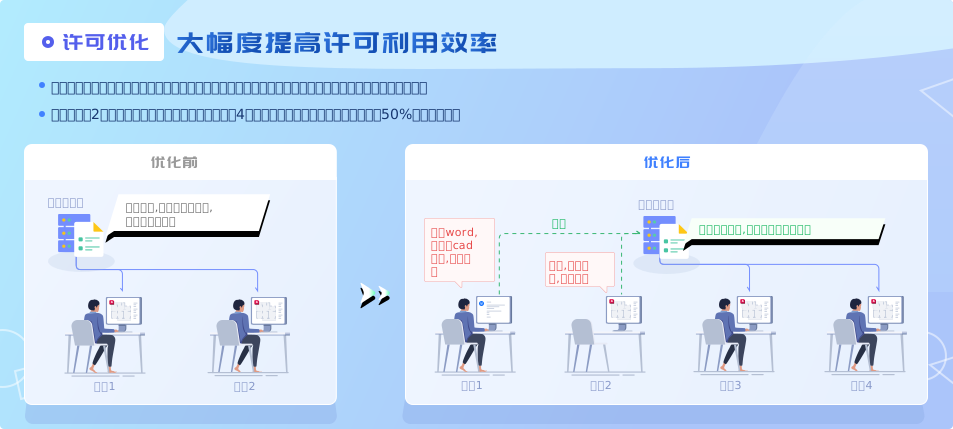
Network (Floating) Licenses: Ideal for organizations with multiple users. Licenses are stored on a central server, and users check out licenses as needed. This model optimizes license usage and reduces costs.
Single-User Licenses: Suited for individual users or small teams. Licenses are tied to a specific machine and do not require a network connection.
Choosing the right model depends on your organization’s size, workflow, and budget.
2. Setting Up a License ServerPrerequisites
A dedicated server (Windows Server 2008+/macOS/Linux) with a stable network connection.
Autodesk Network License Manager (installed via the "Install Tools and Utilities" option during product installation).
A valid Autodesk product license file (obtained from the Autodesk Account portal after purchasing a network license).
Configuration Steps
Windows Server
Open LMTOOLS: Launch the utility from the Start menu ("All Programs > Autodesk > Autodesk Network License Manager > LMTOOLS").
Configure Services:
Navigate to the Config Services tab.
Enter a service name (e.g., "AutoCAD_2025"), then browse to specify paths for:
lmgrd.exe (located in the License Manager installation folder).
The license file (e.g., adsk_server.lic).
A debug log file (e.g., debug.log) for troubleshooting.
Check "Use Services" and "Start Server at Power Up" to ensure automatic startup.
Click Save Service and confirm.
Start the Server: Go to the Start/Stop/Reread tab, click Start Server, and verify the status in the Server Status tab. A successful start displays "License server UP (MASTER)".
macOS/Linux Server
Move License File: Copy the license file to the hidden directory:
macOS: /usr/local/flexnetserver/
Linux: /opt/flexnetserver/
Start the Server: Use terminal commands (replace paths as needed):
macOS: sudo ./lmgrd -c /usr/local/flexnetserver/adsk_server.lic -l /usr/local/flexnetserver/adsk_serverLog.log
Linux: sudo ./lmgrd -c /opt/flexnetserver/adsk_server.lic -l /opt/adsk_serverLog.log
Verify Status: Check the server logs or use lmutil lmstat -a to confirm the server is running.
3. Client ConfigurationTo connect clients to the license server:
Install AutoCAD: Choose "Network License" during installation and enter the server’s IP address or hostname.
Verify Connection: After installation, open AutoCAD and go to Help > About Autodesk AutoCAD > Product Information. Ensure the "License Type" is listed as "Network" and the server is connected.
4. Troubleshooting Common IssuesLicense Server Not Starting
Verify that lmgrd.exe and the license file paths are correct in LMTOOLS.
Check user permissions for the debug log file/folder (write access required).
Ensure no firewall is blocking port 2080 (default for Autodesk Network License Manager).
Error "-15.570.0" (Network License Unavailable)
Confirm the client is pointing to the correct server IP/hostname.
Restart the License Server service and the client application.
Error "-97,121" (FlexNet License Error)
Validate the license file format (should start with "SERVER" or "USE_SERVER").
Reinstall the license file in the correct directory.
Firewall Blocking Communication
Enable TCP ports 2080 and 27000-27009 on the server firewall.
For Windows, add inbound rules to allow these ports.
5. Changing or Resetting License Server InformationFor Autodesk products version 2020 or higher, use the AdskLicensingInstHelper tool to modify the license server:
Windows Command:
%CommonProgramFiles(x86)%\Autodesk Shared\AdskLicensing\Current\Helper\AdskLicensingInstHelper.exe change --prod_key [PRODUCT_KEY] --prod_ver [VERSION] --lic_servers [NEW_SERVER_IP]
macOS Command:
sudo /Library/Application Support/Autodesk/AdskLicensing/Current/helper/AdskLicensingInstHelper change --prod_key [PRODUCT_KEY] --prod_ver [VERSION] --lic_servers [NEW_SERVER_IP]
Steps: After running the command, delete the old server entry from the registry (Windows: HKCU\Software\FLEXlm License Manager\ADSKFLEX_LICENSE_FILE) or .flexlmrc file (macOS/Linux).
By following these guidelines, you can effectively set up, configure, and troubleshoot an Autodesk License Server for AutoCAD, ensuring seamless access to the software for your team.
武汉格发信息技术有限公司 | 许可分析,许可优化,许可管理,许可授权,软件授权





 技术文档
技术文档
 推荐好文
推荐好文






 155-2731-8020