



软件

产品


ArcGIS Runtime SDK for Android中一个展示 地图 的示例(https://developers.arcgis.com/android/latest/sample-code/display-map.htm),如下:
public class MainActivity extends AppCompatActivity { private MapView mMapView; @Override protected void onCreate(Bundle savedInstanceState) { super.onCreate(savedInstanceState); setContentView(R.layout.activity_main); // inflate MapView from layout mMapView = (MapView) findViewById(R.id.mapView); // create a map with the BasemapType topographic ArcGISMap map = new ArcGISMap(Basemap.Type.TOPOGRAPHIC, 34.056295, -117.195800, 16); // set the map to be displayed in this view mMapView.setMap(map); } @Override protected void onPause() { super.onPause(); mMapView.pause(); } @Override protected void onResume() { super.onResume(); mMapView.resume(); } @Override protected void onDestroy() { super.onDestroy(); mMapView.dispose(); }}运行完是这样的:
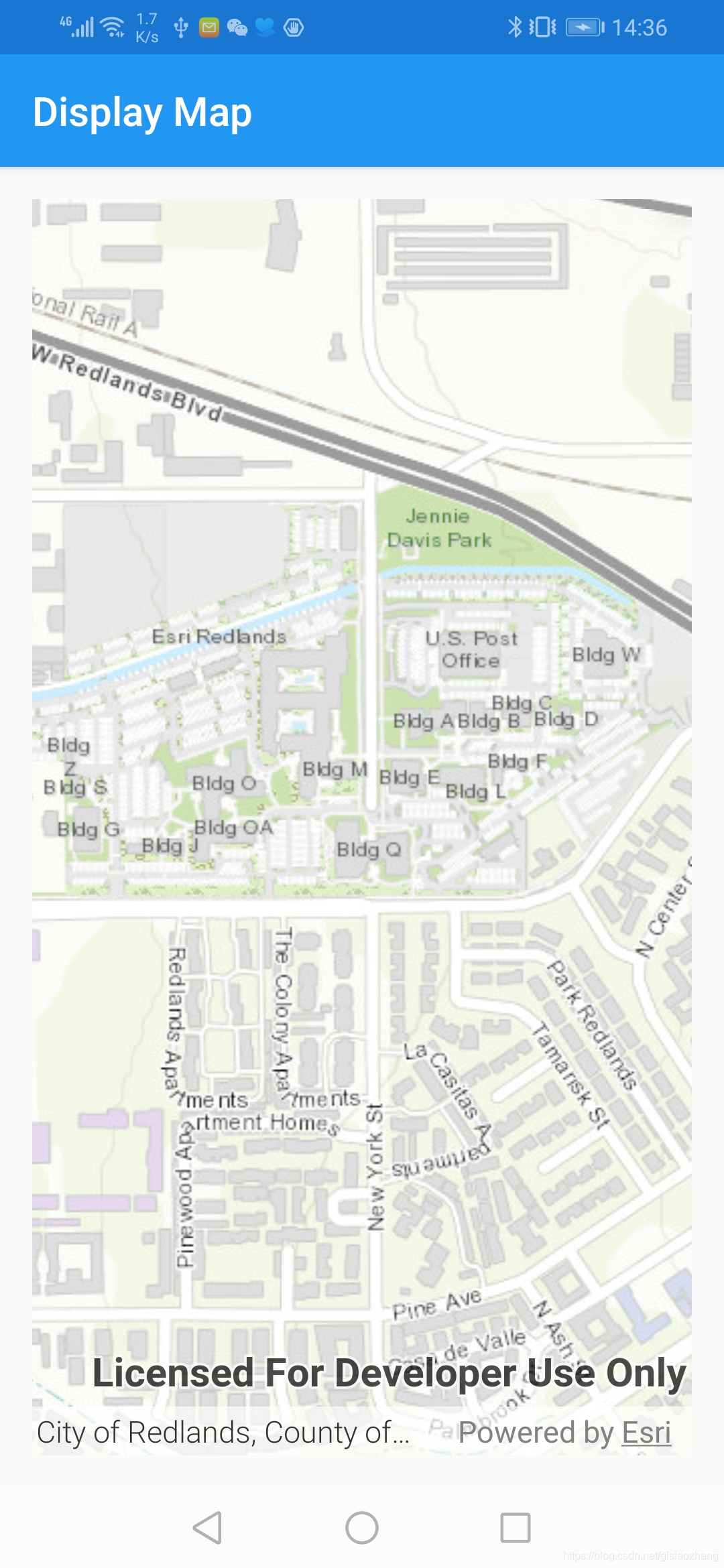
其中“Licensed For Developer Use Only”是水印,“Powered by Esri”是logo,如果不想在自己的地图视图显示水印和logo,怎样去除呢,方法如下:
在自己的代码中,在调用ArcGIS Runtime SDK for Android 的 api 代码段之前加上下述语句,
// license with a license keyArcGISRuntimeEnvironment.setLicense("runtimelite,1000,rud4449636536,none,NKMFA0PL4S0DRJE15166");即可在运行程序后清除水印,清除后的效果图如下:
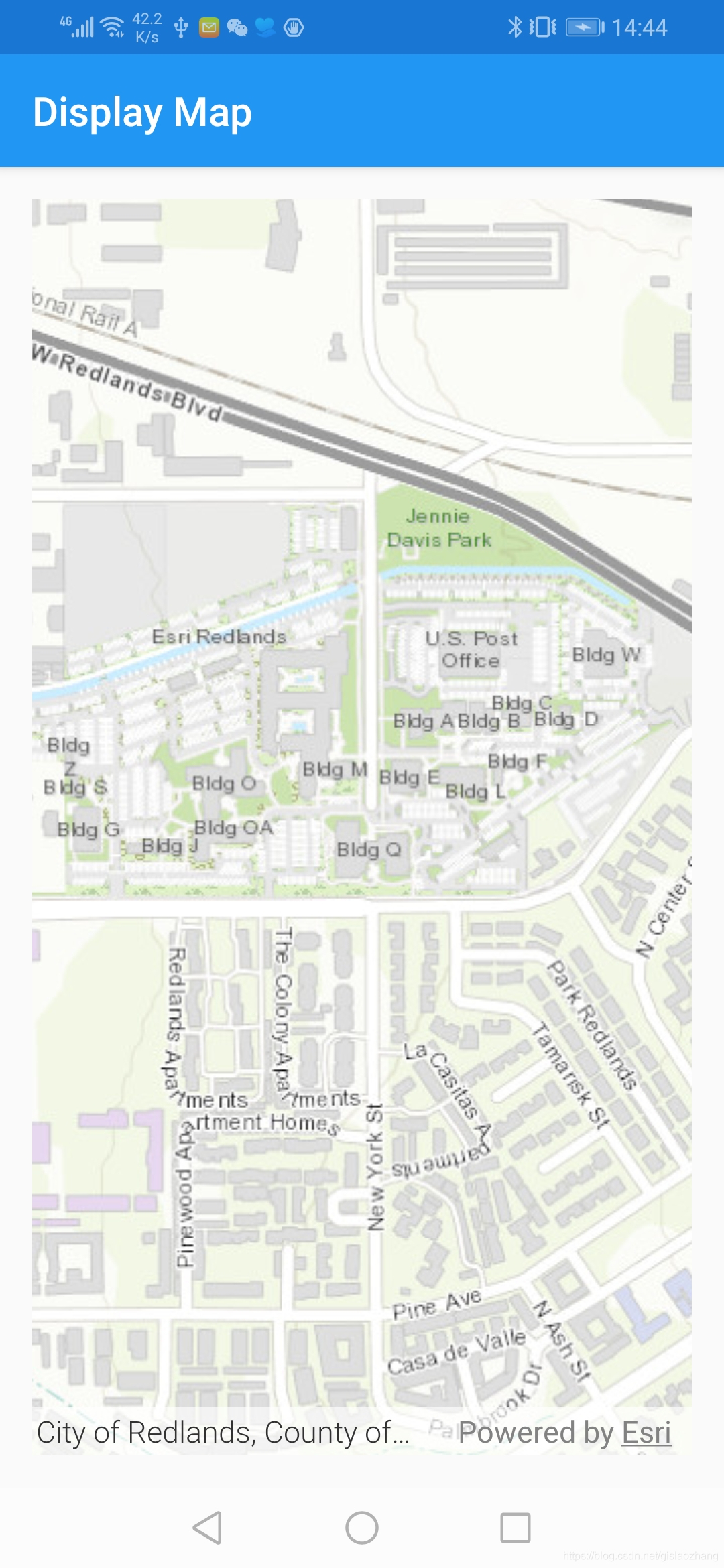
但是,此时在我们的地图视图下方还能看到“Powered by Esri”logo,如何去除请往下看;
调用MapView的setAttributionTextVisible()这一方法,如下:
mMapView.setAttributionTextVisible(false);注:在10.2.x系列上直接调用MapView的setEsriLogoVisible方法即可。
设置后,再次运行应用程序。
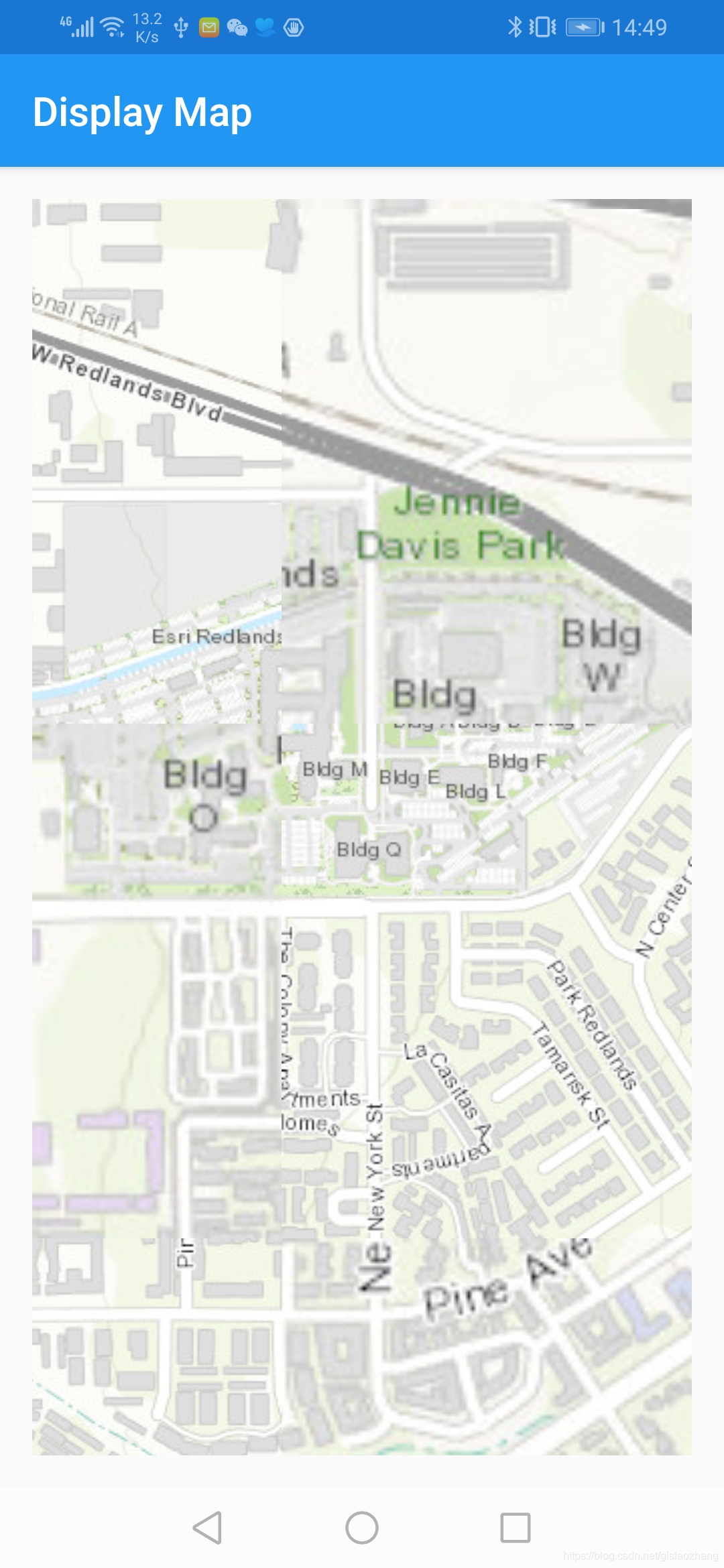
最终我们的清除水印和logo的代码如下:
public class MainActivity extends AppCompatActivity { private MapView mMapView; @Override protected void onCreate(Bundle savedInstanceState) { super.onCreate(savedInstanceState); setContentView(R.layout.activity_main); // license with a license key ArcGISRuntimeEnvironment.setLicense("runtimelite,1000,rud4449636536,none,NKMFA0PL4S0DRJE15166"); // inflate MapView from layout mMapView = (MapView) findViewById(R.id.mapView); mMapView.setAttributionTextVisible(false); // create a map with the BasemapType topographic ArcGISMap map = new ArcGISMap(Basemap.Type.TOPOGRAPHIC, 34.056295, -117.195800, 16); // set the map to be displayed in this view mMapView.setMap(map); } @Override protected void onPause() { super.onPause(); mMapView.pause(); } @Override protected void onResume() { super.onResume(); mMapView.resume(); } @Override protected void onDestroy() { super.onDestroy(); mMapView.dispose(); }}原理解析:
在上述中清除水印调用了ArcGISRuntimeEnvironment的setLicense方法,通过在setLicense中传入我们的licenseKey,也就是授权码就能够成功去除水印,在上述示例中的licenseKey我是传入自己的Lite级别的licenseKey。
在你可以在生产中使用你的应用程序之前,需要授权ArcGIS Runtime应用程序。Esri提供了四个ArcGIS Runtime许可级别:Lite、Basic、Standard和Advanced。每增加一个级别,就会为应用程序用户提供更多的可用功能。其中Lite级别是免费的,可以登录ArcGIS for Developers帐户,转到仪表板,将Runtime Lite许可证密钥复制到应用程序中,即可去除水印,但是Lite级别能够支持的功能是有限,如果你的应用程序还需要用到更高级的功能,那就需要购买其它级别(Basic、Standard和 Advanced )的Runtime许可了。
每种许可类型(:Lite、Basic、Standard和Advanced)支持的对应功能的具体介绍,可以参考 链接 :https://developers.arcgis.com/android/license-and-deployment/license/
提示:我们开发测试时是可以使用所有功能的,只是这时运行的app界面会有“Licensed For Developer Use Only”水印。
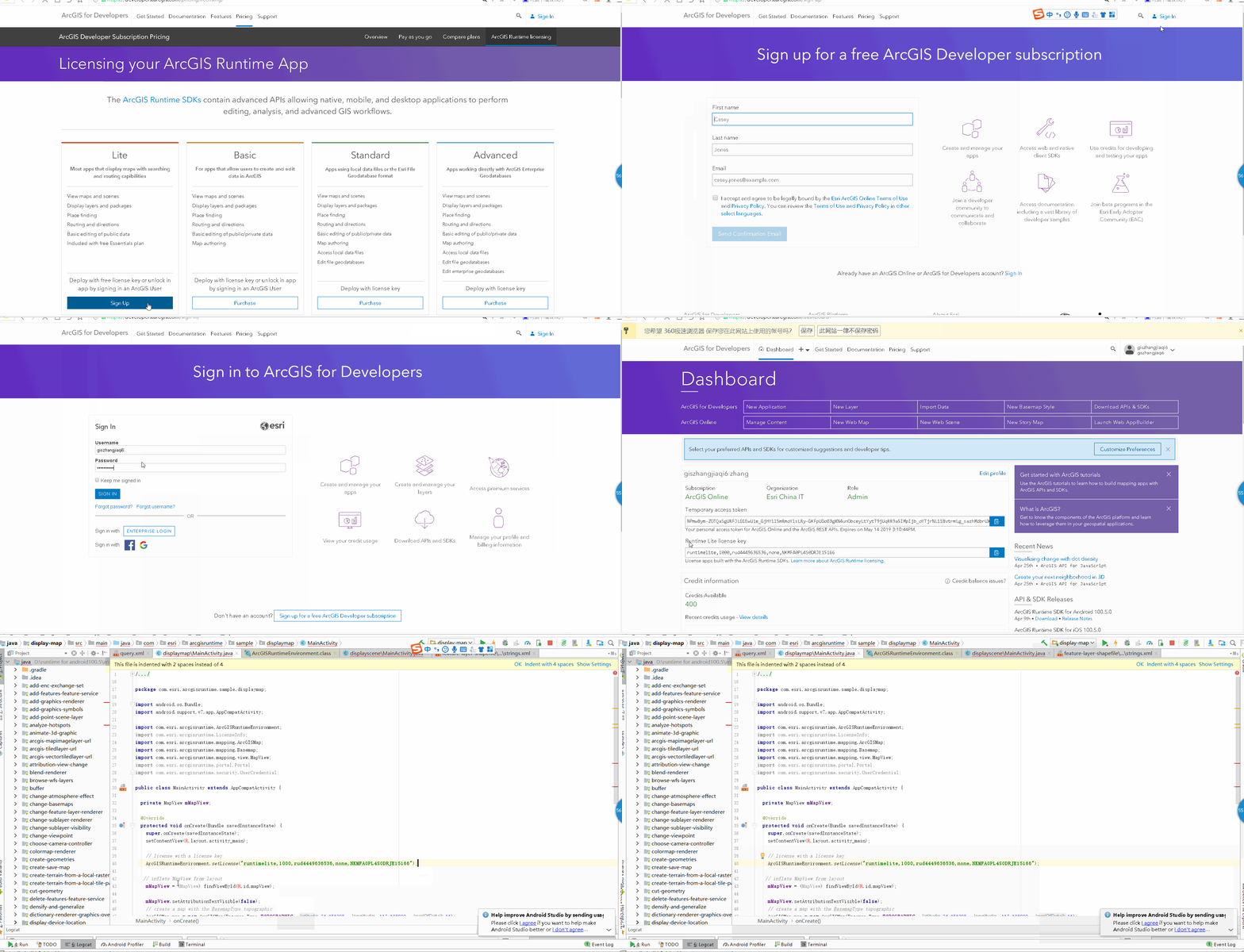
如果是想获取Lite级别的Runtime licenseKey如何获取呢?请参考这个链接:https://developers.arcgis.com/pricing/licensing/
(提示:在下述示意图中需要注册developer账号,我是之前注册过所以直接输入账户名和密码即可登录ArcGIS for Developer。)
免责声明:本文系网络转载或改编,未找到原创作者,版权归原作者所有。如涉及版权,请联系删
 技术文档
技术文档
 推荐好文
推荐好文






 155-2731-8020